Survey widget installation
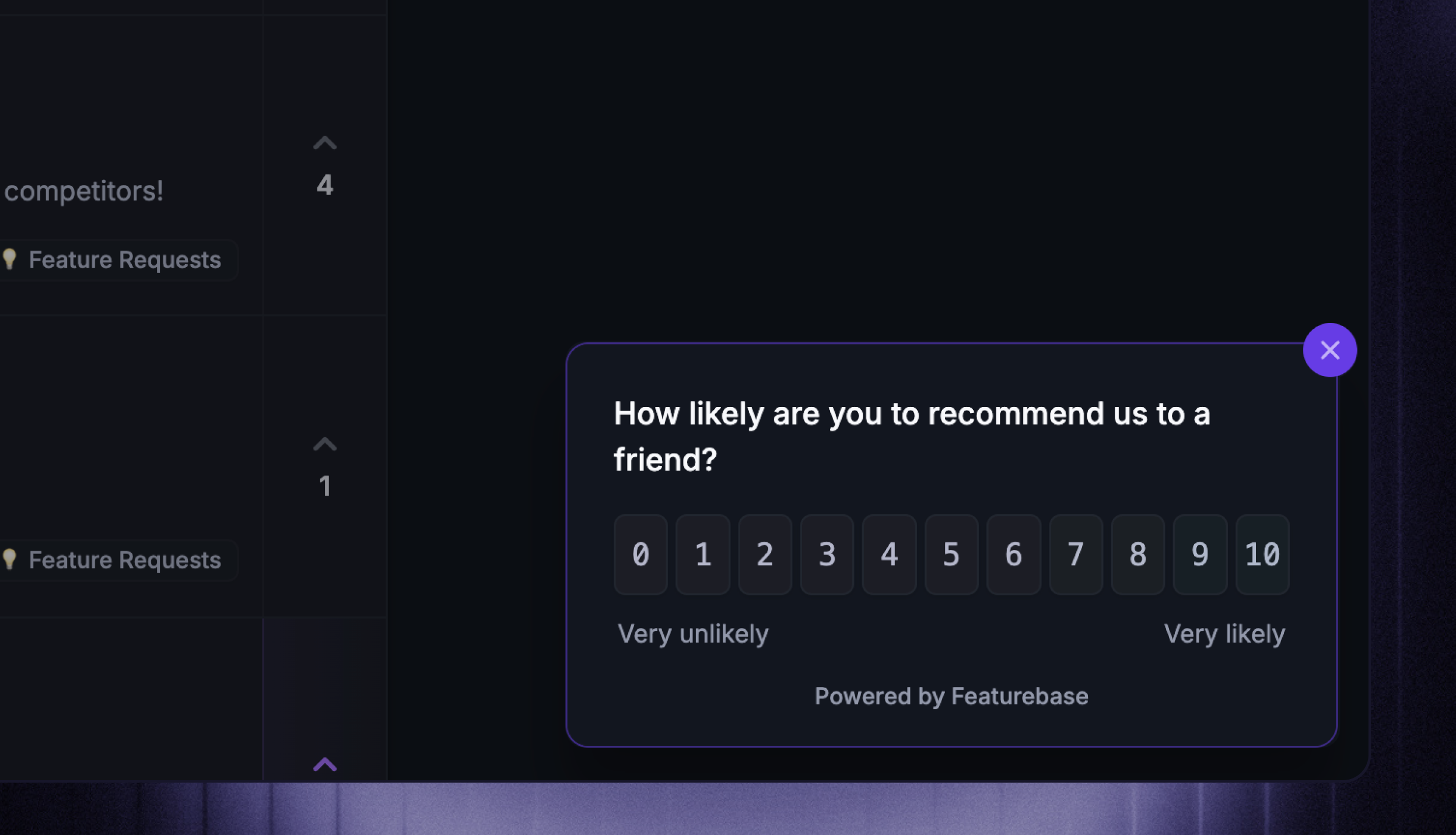
Use Featurebase surveys to collect feedback from your users and measure customer satisfaction.
Written By Robi Rohumaa
Last updated 12 days ago
👨💻 You'll need to write custom code for the setup process. If you're uncomfortable with this, share this guide with a technical team member who can assist.
Install the Featurebase SDK
Every widget — including Survey widget — inherits its appId and the signed-in user from a single universal Featurebase install at your app root. Do that first, then come back here for the widget-specific mount call.
👉 Follow Installation overview (it takes about 2 minutes). Your appId lives in Settings → Developers → Installation.
👤 Logged-in product? Use a server-signed featurebaseJwt on the universal boot so feedback, responses, and read state are attributed to the right person.
Mount the Survey widget
The survey widget can be installed using our JavaScript SDK.
// Inside <FeaturebaseProvider>, anywhere in your tree.
'use client';
import { useSurveyWidget } from 'featurebase-js/react';

export function SurveyHost() {
  useSurveyWidget({
    placement: 'bottom-right',
    theme: 'light',
    locale: 'en',
  });
  return null;
}
import { initSurvey, destroySurvey } from 'featurebase-js';
initSurvey({
placement: 'bottom-right',
theme: 'light',
locale: 'en',
});
// destroySurvey();<script>
Featurebase('initialize_survey_widget', {
organization: 'yourorg',
placement: 'bottom-right',
theme: 'light',
locale: 'en',
});
</script>The SDK loader <script> is already in your page from Installation overview — this tab shows only the widget-specific call you add alongside it.
Triggering the survey
After the widget is installed, each survey will trigger automatically based on the settings you have configured in the Featurebase dashboard.
Was this helpful?
Still need help? Ask the team