Web portal single sign-on (SSO) setup
Automatically authenticate users to your Featurebase portal, widgets, and more by replacing Featurebase's authentication system with your own.
Written By Kateryna Babenko
Last updated 13 days ago
✨ Single Sign-On (SSO) is available starting from the Professional plan.
Overview
Single Sign-On enables you to replace Featurebase’s authentication system with your own app's login system, automatically authenticating users coming from your app so they don’t have to log in.
Users will also be able to log in using their existing account with your app, so they don’t have to worry about creating yet another account for Featurebase.
Benefits:
Seamless authentication and user experience for login
Restrict access across Featurebase to segments (e.g. paying customers, beta testers, etc.)
Sync user data to create segments, restrict their access, and better prioritize feedback
Works with widgets and the public portal for authentication
Good to know: If SSO is enabled, other authentication methods are automatically disabled.
Setting up SSO for the web portal
This process involves setting up a dedicated page on your website to handle SSO authentication, creating and managing JWT tokens, and finally authenticating your users with Featurebase.
Here's a summary of the authentication flow:
Your user wishes to authenticate and clicks on the Login with YourCompany account button on your feedback board.
We redirect them to your website’s custom login page and append the return_to parameter to the URL.
https://yourwebsite.com/sso/featurebase?return_to=https://yourorg.featurebase.app/roadmapYour authentication system logs the user into your website and creates a JWT token.
You return the user back to Featurebase with the generated token and the original return_to parameter passed along.
https://yourorg.featurebase.app/api/v1/auth/access/jwt?jwt=payload&return_to=theReturnToParamYouCanGetFromStep2Featurebase logs the user in and automatically returns them back to where they started the authentication process.
Set up a dedicated SSO page
Set up a page on your website that will authenticate the user on your end (e.g https://yourdomain.com/sso/featurebase)
Next, navigate to your Featurebase Settings → Access & Security → Portal Access, and enter the URL of the page you created in the SSO URL field. This is where Featurebase will redirect users who wish to log in through your app's account.
User authentication and JWT token creation
When a user arrives on your SSO page, authenticate them using your app's authentication system and create a JWT Token for them.
Return the user back to Featurebase
Redirect the user to the Featurebase JWT endpoint with the JWT and return_to URL.https://yourorg.featurebase.app/api/v1/auth/access/jwt?jwt=payload&return_to=https://yourorg.featurebase.app/roadmap
If you run into any issues or have questions, please reach out to our support.
All done! You’ve successfully implemented JWT authentication for the public portal.
Admin SSO
You can also authenticate admins by including the "type": "admin" param in the JWT for admin accounts.
For it to work, any user who has this parameter set will also be automatically added to your organization.
NB! It’s available only on the Enterprise plan, and a feature flag must be turned on from our side. Please reach out to us via live chat to get this enabled.
FAQ
SSO setup requirements
SSO setup requirements
Your app already has user authentication
Your app can create login tokens
Why use SSO?
Why use SSO?
Here are some of the main reasons you might want to set up automatic user authentication with SSO:
Reduced friction: With automatic user auth, users can access Featurebase faster and more easily, without having to remember multiple usernames and passwords
Data syncing: As it also enables you to sync customer data, you gain a better understanding of which users are interacting with your support and providing feedback. This helps you create user segments, restrict their access, and better prioritize feedback.
How do we support SSO?
How do we support SSO?
Featurebase supports SSO in the following ways:
[Feedback Board] Redirecting to your domain and back for authentication.
[Embedded Board] If you have embedded the board in your website, you can authenticate users by including a JWT token in the initialization.
[Widget] - Authenticate users inside the Featurebase widget via a JWT.
Our SSO setup works with JWT tokens.
What’s the difference between SSO and SDK authentication?
What’s the difference between SSO and SDK authentication?
The Single Sign-On option allows you to replace the login button with a link to your app. Then you can handle the authentication from your page and send the user back with the associated data:
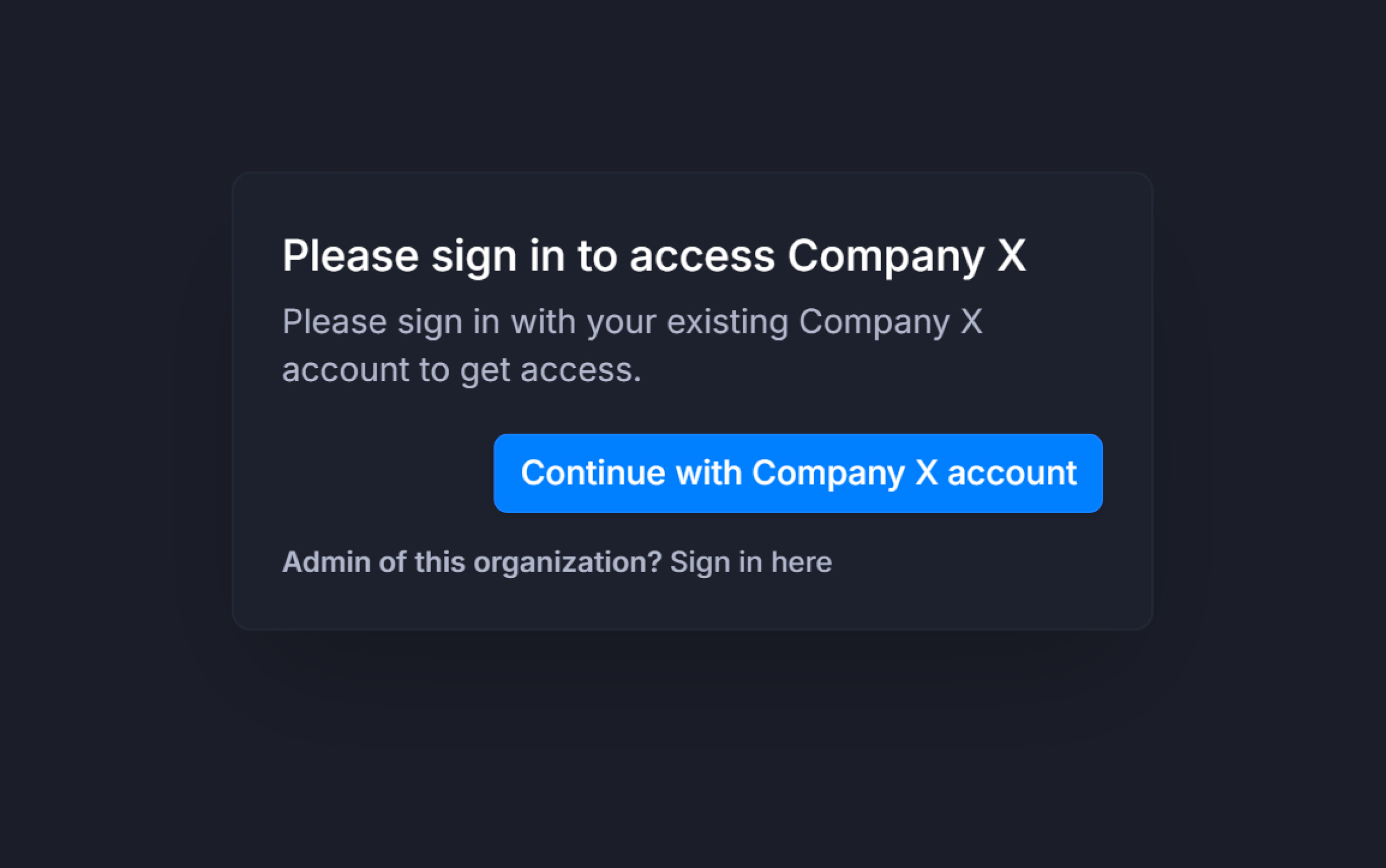
With the SDK, the user has to visit Featurebase from your own app. If they visit directly from another device or from anywhere else form the internet, they’ll not be logged in.
The SSO option is a bit more reliable, as the account will always be the same as it is in your system - no matter where the user visits from.
Can I authenticate users with SSO from multiple different products?
Can I authenticate users with SSO from multiple different products?
Yes! While Featurebase supports only one SSO redirect URL per account, you can still authenticate users from multiple different products by using a simple intermediary step:
Redirect users initially to a custom "Company Picker" page
The user can select the relevant company or product
They're then redirected to the selected company's unique SSO login endpoint
After authentication, send the user back to Featurebase with a valid login token
This approach allows multiple authentication systems to coexist without needing separate Featurebase accounts or compromising user experience.
Was this helpful?
Still need help? Ask the team