Multiple-question surveys
Build multi-question Surveys with follow-up pages and branching logic.
Written By Markus Palm
Last updated 25 days ago
Overview
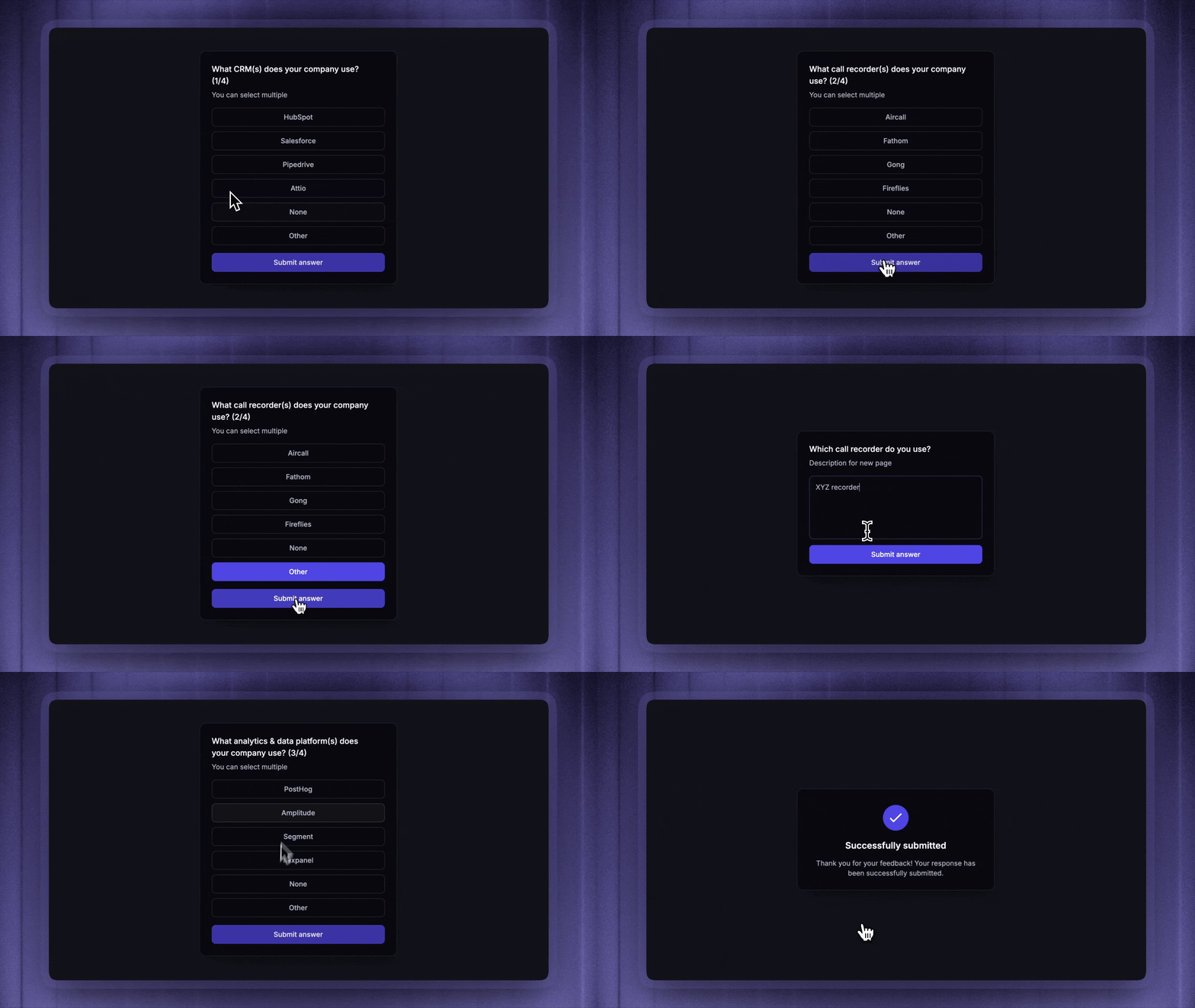
Multiple-question Surveys let you ask a sequence of questions in a single in-app Survey. Use them when one answer should lead to a follow-up question, skip irrelevant questions, or end the Survey early.
Adding follow-up questions
While creating a survey, in the Content section:
Click + Add new page at the bottom
Create your follow-up survey
Add conditional logic
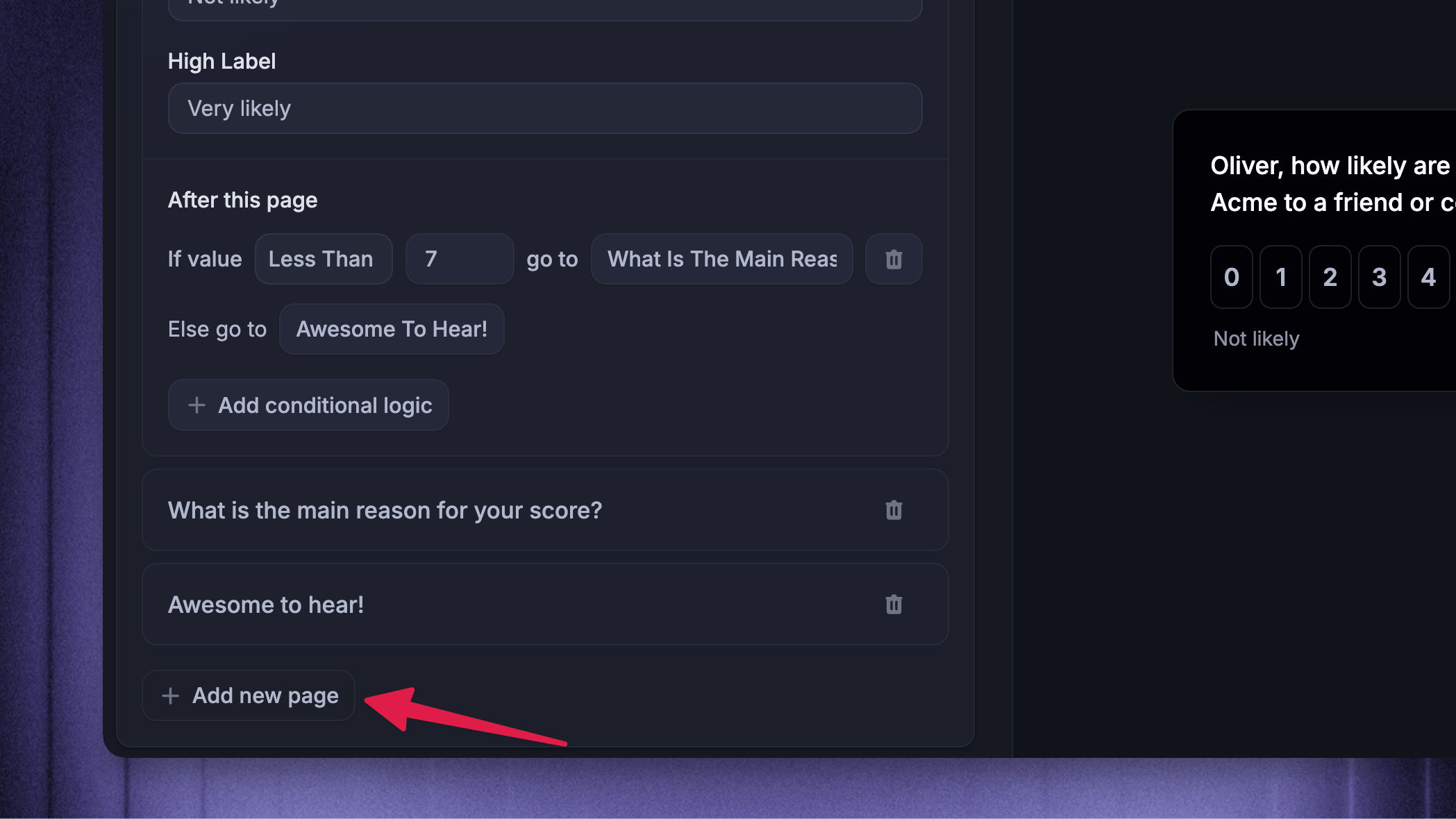
After adding the new page, go back to the initial survey page to and click on + Add condition logic. Conditional logic lets you send respondents to different Survey pages based on their answer.
Each rule follows this pattern: If value comparator {value} go to {survey page}
Destination options include:
Another page in the Survey
Next page
End
If Next page is selected on the last page, the Survey ends.
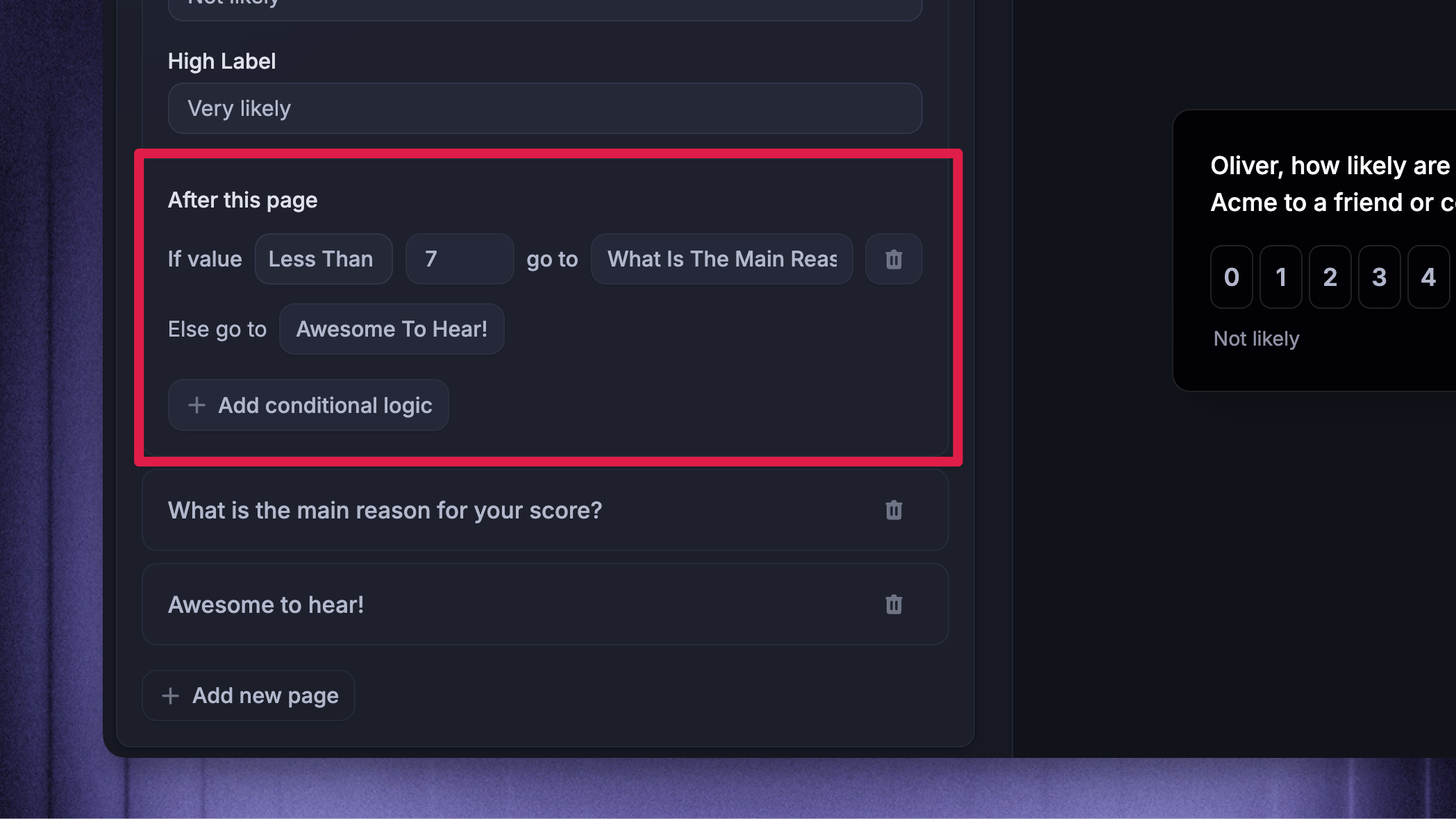
For example, in the screenshot, if the user has given an NPS score below 7, we ask them a follow-up question. Otherwise, we send them a testimonial form link.
Conditions are evaluated in order. The first matching condition wins. If no condition matches, Featurebase uses the default Else go to action.
Repeat this for all follow-up pages.
Tip for the emoji surveys
Tip for the emoji surveys
In the case of emoji surveys, the conditional logic works with numbers:
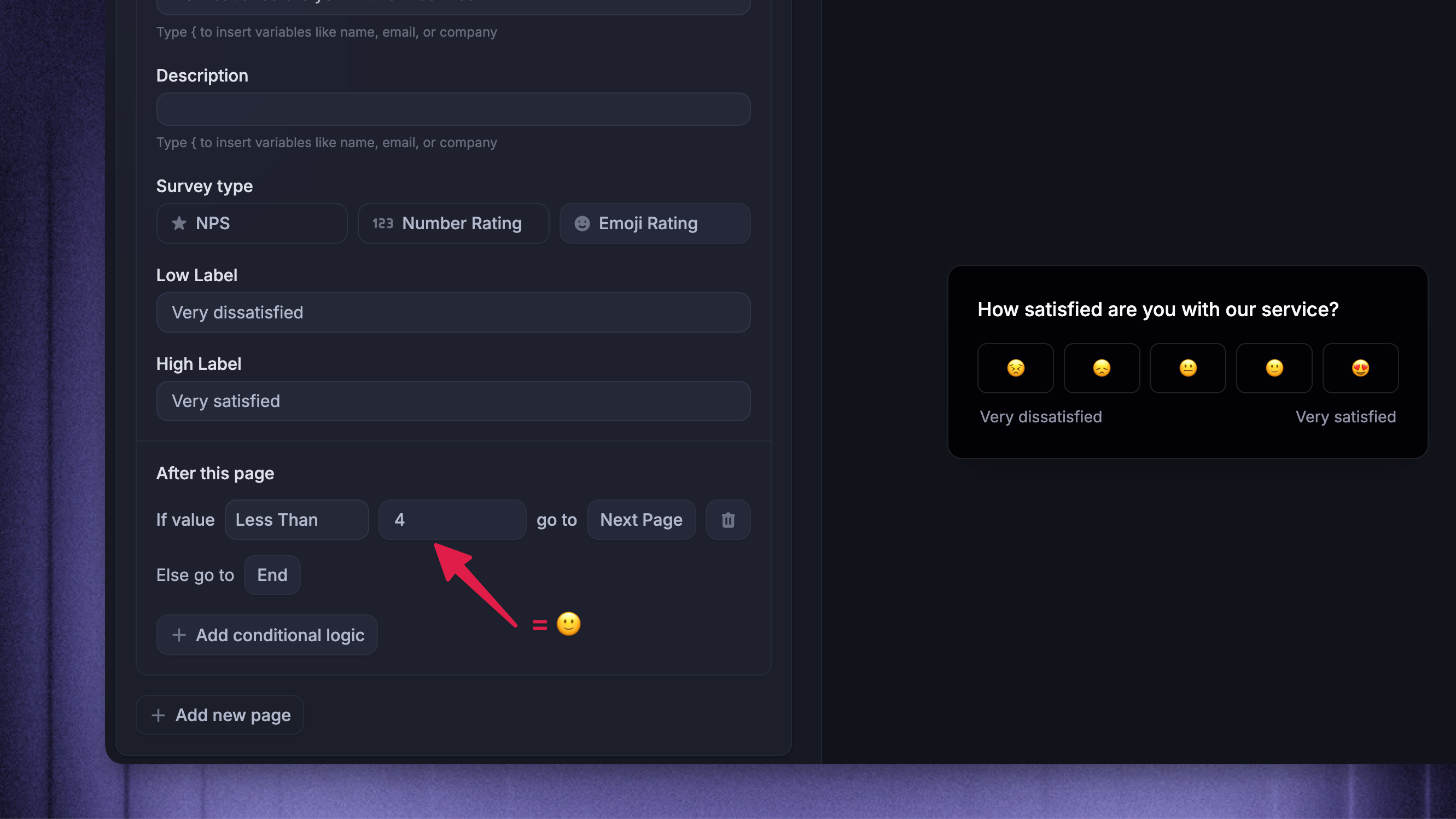
So, for example, if you wanted to follow up the above survey with a conditional rule, you would use:
for 😣
for 😞
for 😐
for 🙂
for 😍
Common condition examples
Use conditional logic when the next question depends on the current answer. Some common setups include:
Featurebase Idea Poll + Open Question
After polling between different feature ideas from your board, follow up with an open-ended question asking why they chose a specific feature. This helps you better understand your users’ motivations.
NPS → Testimonial / Open Question
After measuring NPS, if the user scored high, you can trigger a link survey with a testimonial form. If they scored low, you can ask them for additional feedback through an open-ended survey.
CSAT Survey → Open Question → Interview Request
After measuring user satisfaction, you can request more detailed feedback if the satisfaction score is low and, if needed, invite the user to discuss their experience more deeply in a Zoom interview with a link survey.
Plus, you can combine all of these with precise targeting and show them to exactly who you want to.
FAQs
What happens if more than one condition matches?
What happens if more than one condition matches?
Featurebase uses the first matching condition. Put the most specific condition first, then use broader conditions later in the list.
What happens if no condition matches?
What happens if no condition matches?
Featurebase uses the default action in the After this page section. When conditional rules exist, this appears as Else go to.
Can a Survey end before all pages are shown?
Can a Survey end before all pages are shown?
Yes. Choose End as the destination for a condition or default action. Respondents who reach that destination will finish the Survey without seeing later pages.
Are answers saved before the full Survey is completed?
Are answers saved before the full Survey is completed?
Yes, each Survey answer is immediately saved even if other steps are not completed.
Tip: Put the most important question early in the Survey if partial answers would still be useful.
Was this helpful?
Still need help? Ask the team