Importing Updates
Import existing Markdown- and HTML-formatted product updates into Featurebase through the API.
Written By Robi Rohumaa
Last updated 18 days ago
Overview
Import your existing release notes into Featurebase to keep your full product history in one place. This gives customers useful context from day one instead of starting with an empty Updates page.
Imported Updates are saved as drafts, so you can review the content, categories, targeting, and date before publishing anything.
👨💻 You'll need to write custom code for the setup process. If you're uncomfortable with this, share this guide with a technical team member who can assist.
Import Updates
Prepare your source data
Export the information you want to keep from your current tool:
Title
Body content as Markdown or HTML
Original publish date
Categories
Featured image URL
Language
Segment IDs for restricted Updates
Before importing, create any missing categories:
Click Add category
Enter a name and choose a color
Click Add Category
The API can assign existing categories but does not create them.
Get your API key
Create or copy an API key
Store it securely and use it from server-side code or a trusted migration script
Never expose your API key in browser code, public repositories, or client-side apps.
Choose Markdown or HTML
Use markdownContent when your source content is Markdown. Featurebase converts it to HTML during the import.
Use htmlContent when your source already contains HTML or you need to preserve richer formatting. Images referenced in the content and the featuredImage URL are uploaded to Featurebase.
Send only one content field for each Update.
Import Updates through the API
Send one request to the legacy POST /v2/changelogs endpoint for each Update. The public API uses “Changelog” naming for Update endpoints and fields.
POST /v2/changelogs
Each request requires:
titleEither
markdownContentorhtmlContent
You can also include:
categoriesfeaturedImagedatelocaleallowedSegmentIds
Example:
{
  "title": "New billing dashboard",
  "markdownContent": "We shipped a new billing dashboard with clearer usage data.",
  "categories": ["New", "Improved"],
  "featuredImage": "https://example.com/billing-dashboard.png",
  "date": "2024-04-15",
  "locale": "en"
}
Review and publish imported Updates
After the import:
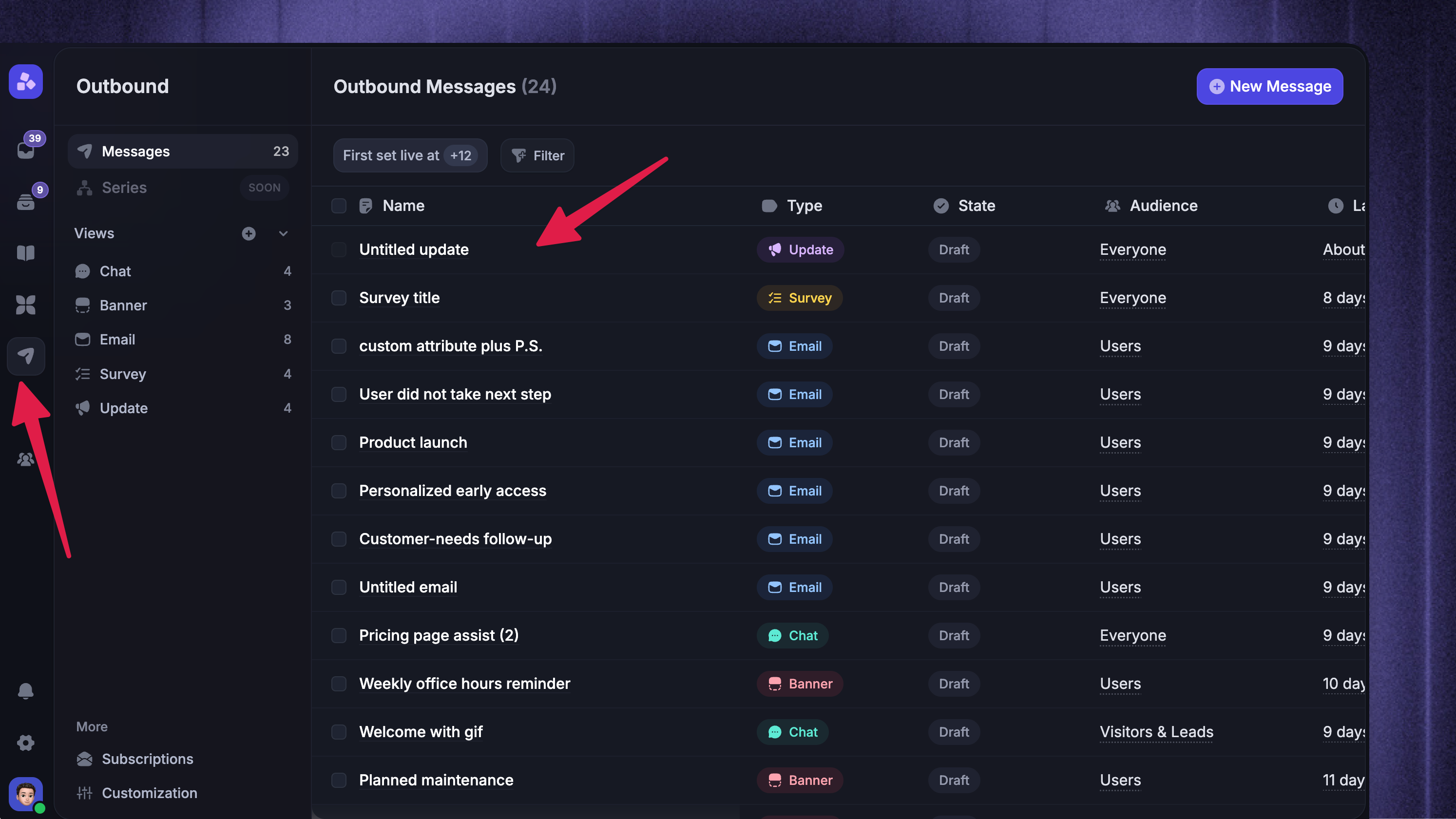
Go to Dashboard → Outbound
Open an imported draft
Review the content and delivery settings
Publish the Update when ready
Importing an Update does not send an email. You can choose whether to notify subscribers when you publish the draft.
What is not imported
The API creates the Update content and its publishing settings. It does not migrate analytics, comments, reactions, subscriber lists, or email delivery history from your previous tool.
Import subscriber emails separately using the legacy subscriber endpoint.
FAQs
Can I import Updates from a CSV file?
Can I import Updates from a CSV file?
Not directly. If your current tool exports a CSV file, use a migration script to read each row and send one API request per Update.
Which tools can I import from?
Which tools can I import from?
Any tool that lets you export the required fields, such as the title, content, date, categories, and images.
Can I keep the original publish dates?
Can I keep the original publish dates?
Yes. Set the date field in each API request. To change the date later, you can edit published Updates to backdate them.
What if I need help with a large migration?
What if I need help with a large migration?
Contact us through live chat or email support@featurebase.app. Large migrations may need cleanup when the source contains custom formatting or hosted media.
Was this helpful?
Still need help? Ask the team