Tickets portal overview
Let customers follow, reply to, and open support tickets in your Customer Portal.
Written By Markus Palm
Last updated 12 days ago
Overview
The Ticket Portal is the page in your Customer Portal where customers follow their support tickets. They can check the status of each ticket, reply to your team, and open new tickets without starting a chat or sending an email.
It shares the Customer Portal menu, design, and sign-in with your Feedback Portal, Updates, and Help Center, so customers find support, answers, and product news in one place.
Note: The Ticket Portal is available on the Professional and Enterprise plans. To turn it on and set it up, follow Tickets portal setup.
What customers see
Ticket list
The Tickets page shows your portal title, a short description, and the 'New Ticket' button. Three tabs group their tickets:
All: Recent activity on their tickets, grouped by day
Open: Open tickets, with tickets that wait for the customer's reply first
Resolved: Completed and canceled tickets
Each ticket shows its title, status, and the time of its latest activity. A marker shows new activity that the customer has not seen yet. Tickets that wait for the customer show the status Waiting on you.
Customers can search their tickets. When they can see tickets that their company shares, they can also switch between All tickets and Created by me.
Ticket page
When a customer opens a ticket, they see its status, ticket number, ticket type, and the date it was opened. The page has two tabs:
Conversation: The full thread with your team, including status changes, with a reply box at the bottom
Details: The ticket's status, type, dates, and form fields
Customers cannot close or resolve a ticket themselves. Your team changes the status from the Inbox.
New tickets
To open a ticket, customers click 'New Ticket' and fill in the ticket form. They must sign in first.
Customers who sign up on the portal with email and password verify their email before they can see or create tickets. Customers who sign in through your app or with a sign-in provider, such as Google or GitHub, are already verified.
How customers find the portal
Customer Portal menu: When the Ticket Portal is on, Tickets appears in the Customer Portal menu. You can rename, reorder, or hide menu items in Settings → Customer Portal → Menu & footer.
Portal link: Share the address shown under Visit ticket portal in Settings → Support → Ticketing → Tickets portal.
Private requests: When Private requests go to is set to Automatic, private requests from the portal's New request page go to the Ticket Portal. Find this setting on the Categories tab in Settings → Requests → Management.
Messenger: Add a custom home card that links to the Ticket Portal.
Portal address
By default, the Ticket Portal is at https://yourcompany.featurebase.app/tickets. If your Customer Portal uses a custom domain, the Ticket Portal is at /tickets on that domain.
You can also give the Ticket Portal its own domain, such as tickets.yourcompany.com, in Settings → Customer Portal → Custom domains. Then the Ticket Portal opens at the root of that domain.
Ticket visibility
Each customer sees only the tickets they have access to. You set this per Customer ticket type, on the Access Control tab of the ticket type settings in Settings → Support → Ticketing → Ticket types.
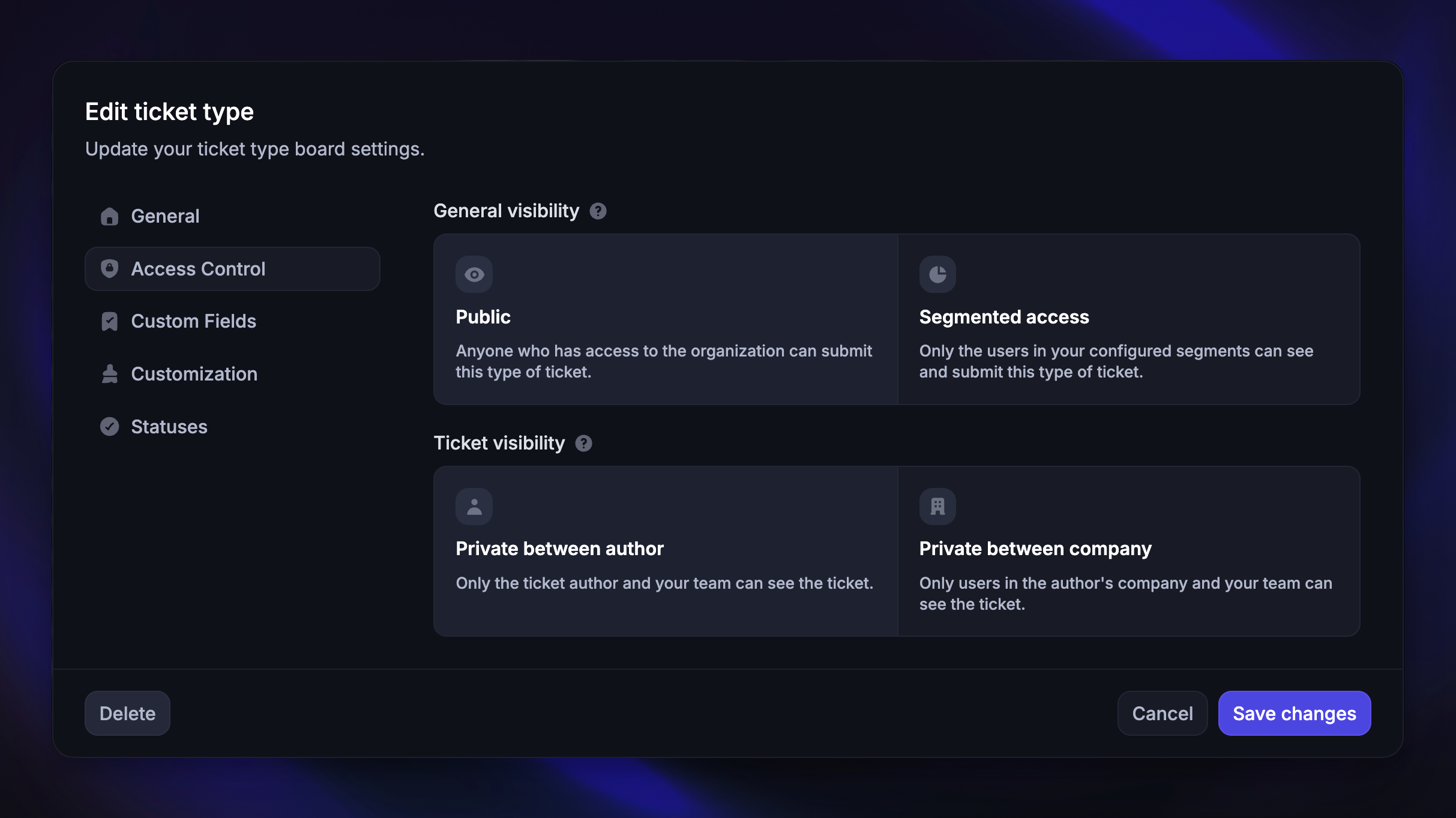
General visibility controls who can see and submit the ticket type:
Public: Anyone with access to your workspace
Segmented access: Only users in the segments you choose
Ticket visibility controls who can see a ticket after it is submitted:
Private between author (default): The author and your team
Private between company: Users in the author's company and your team
Customize the portal
Text and languages - Change the portal title, description, and 'New Ticket' button text, and add languages, in Settings → Support → Ticketing → Tickets portal.
Look and feel - Set the logo, colors, fonts, and light and dark mode in Settings → Customer Portal → Brand & colours. These settings apply to the whole Customer Portal.
Access and sign-in - Choose who can open the Customer Portal and which sign-in methods customers can use in Settings → Customer Portal → Access & visibility.
FAQ
Why don't I see any tickets when I open the portal?
Why don't I see any tickets when I open the portal?
When you are signed in as a teammate, the Ticket Portal shows a notice instead of tickets. Your team manages tickets in the Inbox.
Can customers close their own tickets?
Can customers close their own tickets?
No. Customers can reply to a ticket, but only your team can change its status, for example to resolve it.
Do customers get notified about ticket updates?
Do customers get notified about ticket updates?
Yes. Featurebase sends email updates about their tickets, and the Ticket Portal marks new activity that the customer has not seen yet.
Was this helpful?
Still need help? Ask the team