Linear Integration
Learn to integrate Featurebase with Linear and the key features.
Written By Kateryna Babenko
Last updated 20 days ago

Overview
The Featurebase ↔ Linear integration lets you turn customer feedback into actionable Linear issues and keep their statuses in sync. As work progresses in Linear, Featurebase automatically updates the related posts and notifies users about changes.
You can sync issues across multiple Linear teams and define different sync rules for different Featurebase boards. This gives you full control over how feedback moves through your workflow as your product and teams scale.
Key features:
Two-way sync of statuses between Linear and Featurebase posts
Manually push Featurebase posts to Linear as issues or projects, and vice versa
Link Featurebase posts to existing Linear issues or projects
Sync due dates from Linear issues and projects to Featurebase
Automatically notify users when the status of their request changes
Example: New feedback in Featurebase is automatically pushed to Linear for your engineers. When the issue status is updated in Linear (for example, Planned → Completed), the related post in Featurebase is updated automatically and all upvoters are notified by email.
Setting up the Linear integration
Install the Linear integration
In Featurebase, go to Settings → Integrations
Click on Connect to Linear
Next, click on Authorize Featurebase from Linear.
Once connected, click on the Configure Linear button in the same place
Now configure the integration:
Select a default team
Choose what happens when you delete a linked linear issue.
Choose if you want to automatically push new Featurebase posts to Linear
Create sync rules
Sync rules are used for two-way syncing of statuses between Featurebase posts and Linear issues or projects. This is the most important part of setting up the integration. Syncing between Featurebase and Linear will only work if you set up the rules correctly.
In Featurebase, go to Settings → Integrations → Linear
Then choose ‘Configure rules’
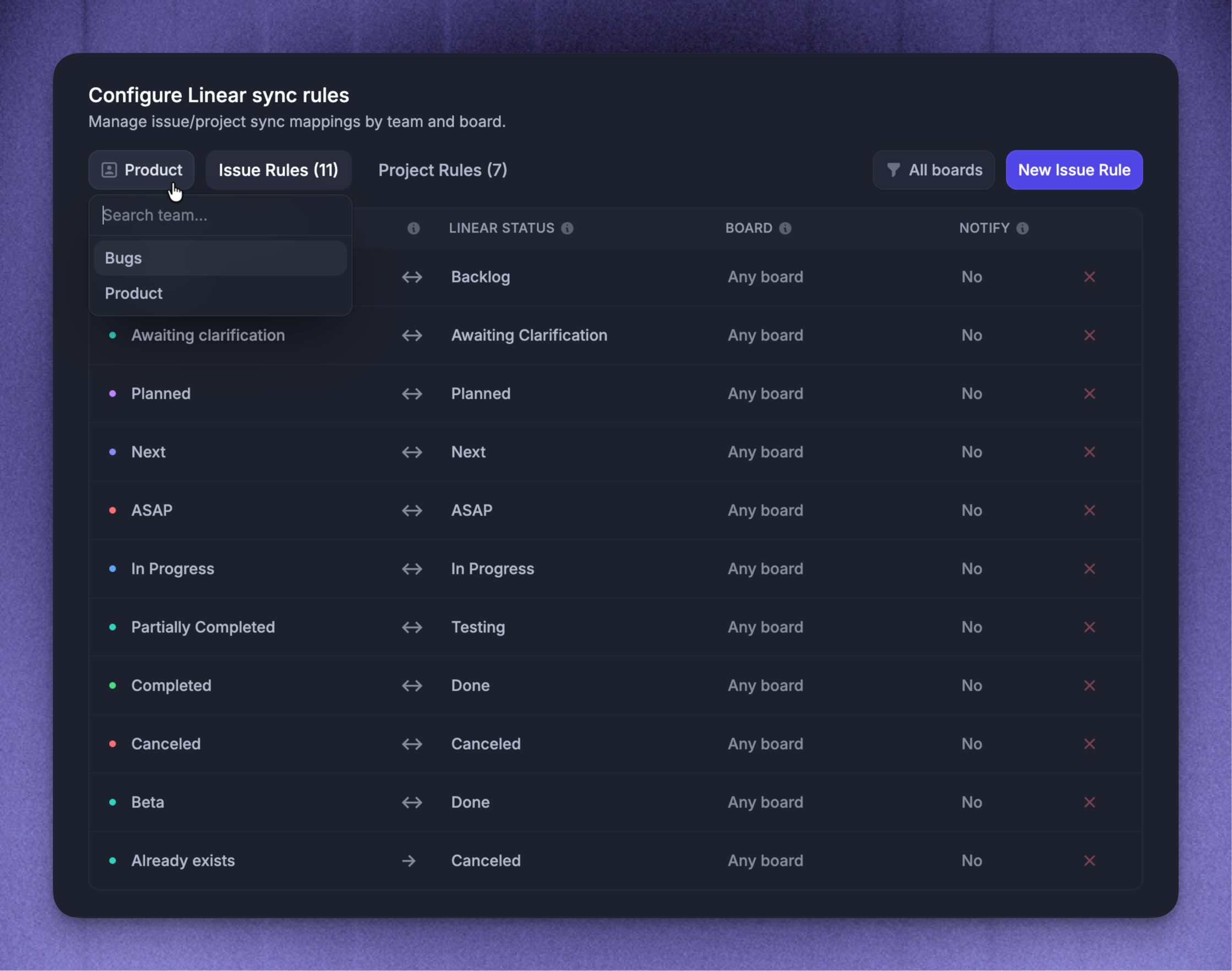
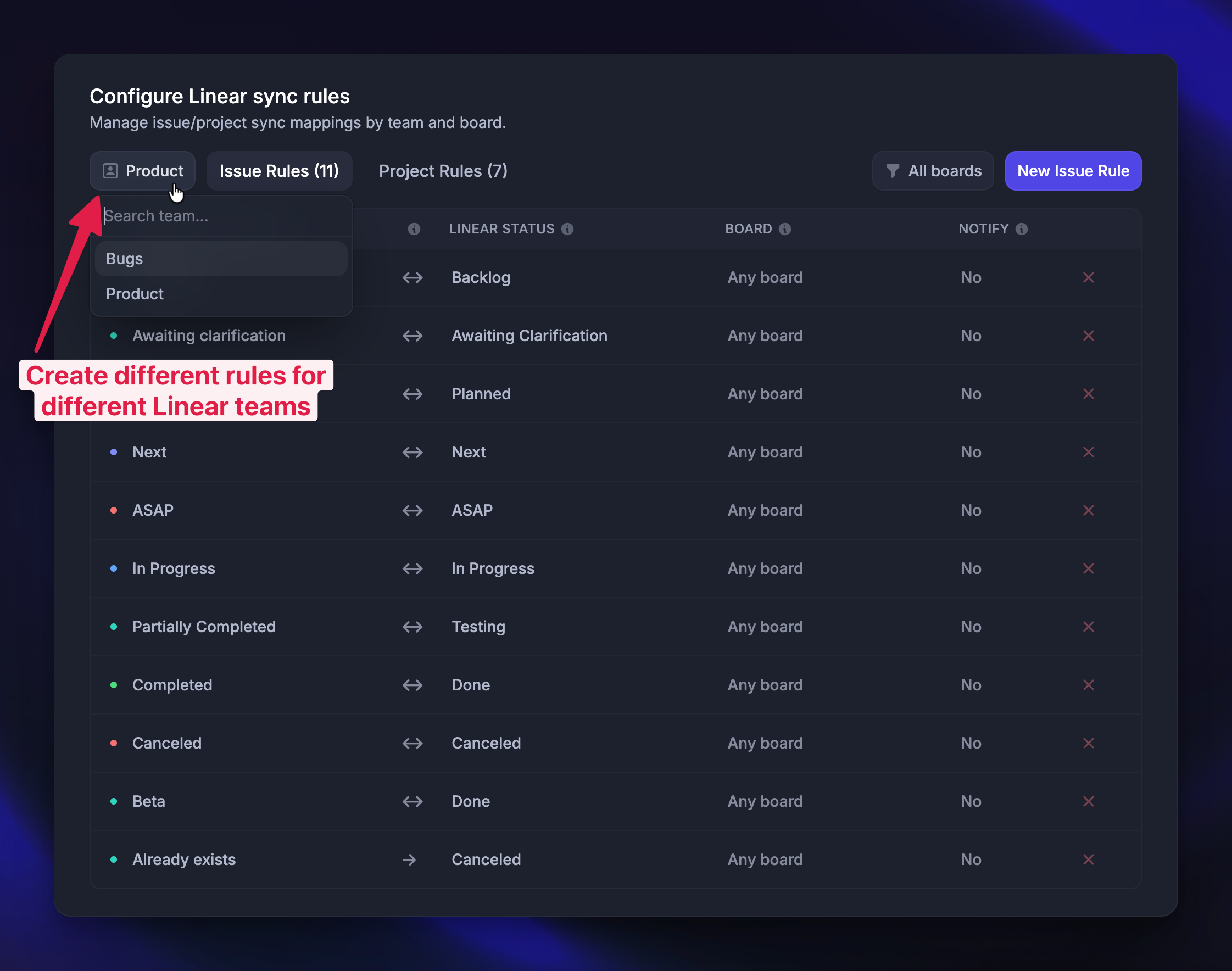
From the top left, choose the Linear team for which you want to map the statuses
Switch between Issue rules and Project rules at the top
Click New issue rule (or project rule) and configure:
The Featurebase status and corresponding Linear status (for every status)
Sync direction (explained below)
Applicable board (if the rule should only apply to a specific board)
Whether to notify users about the status change (If set to Notify, all upvoters will receive an email if you change the status in Linear)
And that's it! Linked posts should sync perfectly from now on!
Different syncing direction options explained
Different syncing direction options explained
Each sync rule has a direction setting:
Bidirectional (Recommended)
When a status is updated in either Featurebase or Linear, it will simultaneously reflect in the other platform.
Featurebase -> Linear
When a status is changed in Featurebase, it will also reflect in Linear. On the other hand, a change in status within Linear will not affect Featurebase.
Linear -> Featurebase
When a status is changed in Linear, it will also reflect in Featurebase. On the other hand, a change in status within Featurebase will not affect Linear.
How to use
1. Push Linear issues to Featurebase
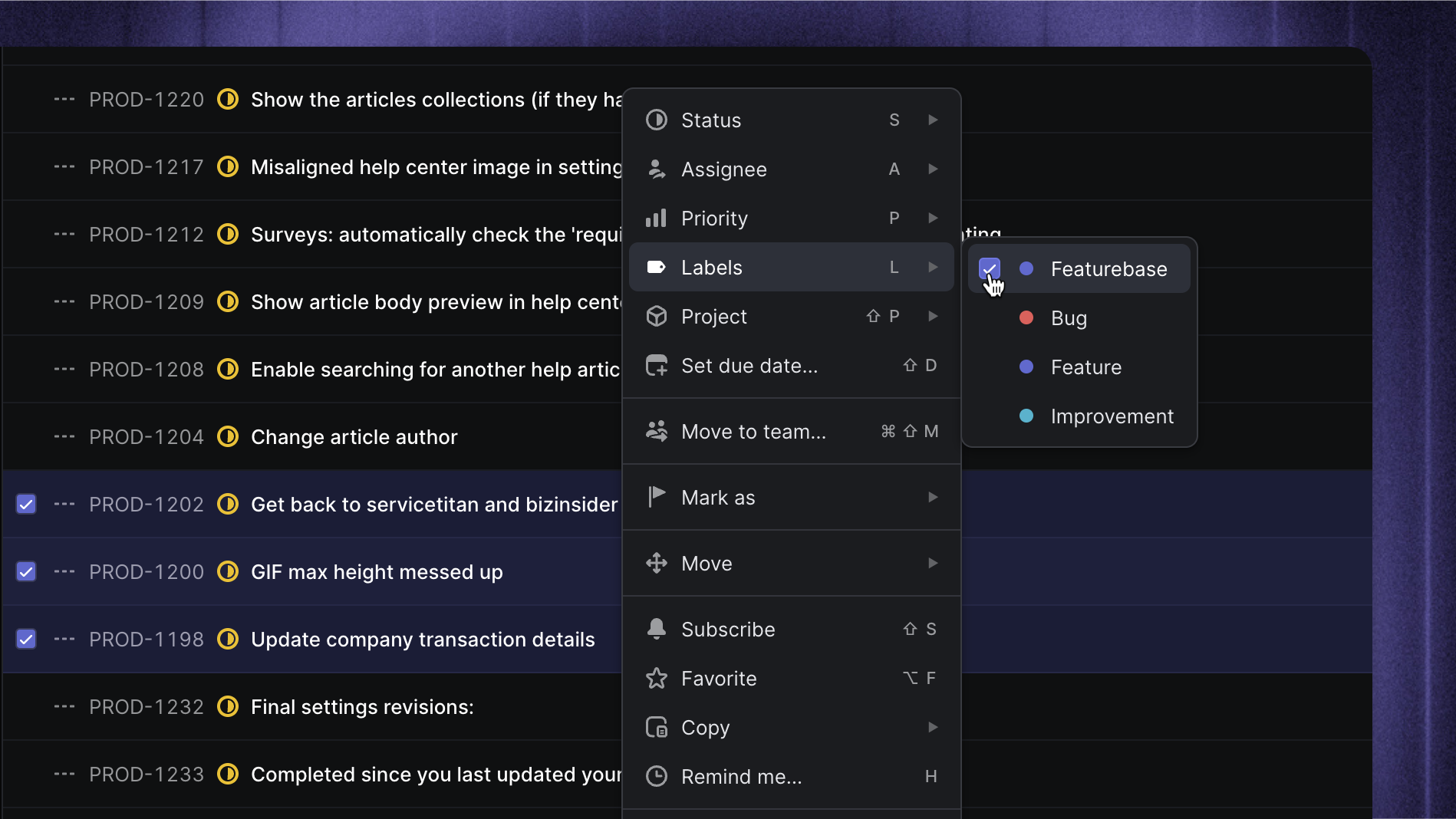
You can push existing Linear issues to Featurebase to start collecting feedback for them:
In Linear, select the issues you’d like to push to Featurebase
Add the “Featurebase” label to them
You can also do the same when creating a new post - just add the label during creation. The importing will respect the rules you configured earlier in this tutorial.
If you're pushing 300+ posts to Featurebase, expect a delay in the Linear issues getting a link back to Featurebase, as we have to wait to avoid rate limiting from the Linear API.
2. Push Linear projects to Featurebase
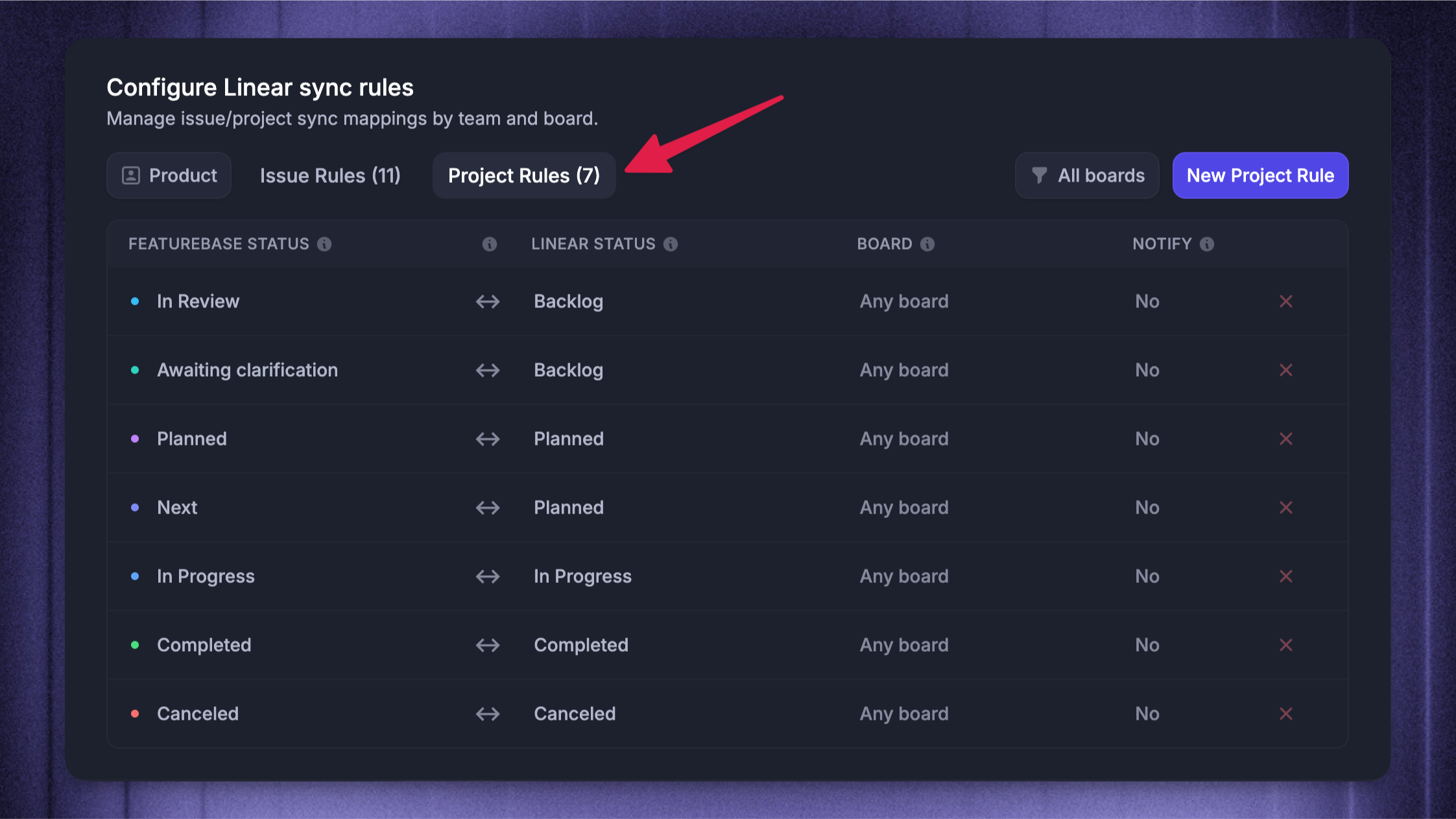
To push Linear projects to Featurebase, you need a sync rule between the Linear project and a Featurebase post. After this, when you change the status of your Linear project or create a new one, Featurebase will automatically create a post.
You’ll still have full control over what is shown publicly. All projects will be pushed into the Moderation tab, where you can approve what is shown to everyone.
It will pull in the Title and Description of your Linear Project, and you can always change them in Featurebase to make them different from your internal ones.
3. Pushing posts from Featurebase to Linear
If you did not set up automatic pushing from Featurebase to Linear, you can push only selected posts for more control:
In Featurebase, simply open up the post
Click the Linear icon on the top right
Select ‘Create new issue’
You can quickly see the new issue in Linear by pressing the same Linear icon and clicking “View linked issue”
4. Link Featurebase posts to existing Linear issues or projects
Linking Featurebase posts to existing Linear issues or projects is essentially the same:
In Featurebase, simply open up the post
Click the Linear icon on the top right
Select ‘Link to existing issue or project’
Search for the Linear issue or project using the search bar and click Link.
You can unlink the issues from the bottom of the post content section if needed.
FAQ
Are posts made before the integration setup also automatically synced into Linear?
Are posts made before the integration setup also automatically synced into Linear?
No, posts created in Featurebase before setting up the Linear integration will not be automatically synced.
You can manually push existing posts to Linear after the integration is configured by opening the post in Featurebase, clicking the Linear icon in the top-right corner, and selecting “Create new issue” or linking it to an existing Linear issue.
How does the Post moderation work with Linear integration?
How does the Post moderation work with Linear integration?
When Post Moderation is enabled:
Creating a new Project in Linear will automatically sync it to the moderation queue before going public (assuming project sync settings are enabled)
Pushing issues from Linear to Featurebase with the label pushes them straight to the public portal, because you can deliberately choose which issues you add the link to, so there’s no reason to moderate them.
And a small sketch to represent that:
Linear → Featurebase
Project -> Creates Post under moderation
Issue (no Featurebase label) → no sync
Issue (with Featurebase label) → Synced as Accepted Post
Can new posts made in Featurebase be auto-added as issues in a Linear team or project?
Can new posts made in Featurebase be auto-added as issues in a Linear team or project?
Yes. Once you’ve set up the sync rules, the Linear integration automatically adds new posts in Featurebase to your selected Linear team's issues.
What happens if I move a synced issue to a different team in Linear?
What happens if I move a synced issue to a different team in Linear?
The link between the issues will remain. However, you need to set up sync rules for each team by configuring the Linear integration.
Each team can have customized statuses and therefore has to be set up individually again.
Can I push posts from Linear to a specific Featurebase board?
Can I push posts from Linear to a specific Featurebase board?
You can set up board-specific rules for different Linear teams. For example, to only sync the ‘Bugs’ team in Linear with the ‘Bugs’ board in Featurebase.
If you haven’t configured these board-specific rules, the Linear integration pushes posts to the first board in your Featurebase. You can re-order boards from Settings → Feedback & Roadmaps → Management → Boards to change the board Linear pushes posts to.
Why isn’t automatic push working for my Linear team?
Why isn’t automatic push working for my Linear team?
Automatic push works for the default team set in your Featurebase Linear integration configuration.
If your auto-push rule is for another team, update the default team in the integration settings to match that team - this will fix the issue and allow automatic pushes to work properly.
Can completing a Linear issue automatically create a Product Changelog or update a Help Center article?
Can completing a Linear issue automatically create a Product Changelog or update a Help Center article?
The native integration keeps linked Linear issues and Featurebase posts in sync, but it does not generate Release notes or edit Help Center articles. You can build this workflow using the Featurebase MCP and an automation-capable AI tool.
A scheduled Reader task can monitor completed Featurebase posts and prepare a content brief. If the AI also needs issue details, release notes, or code changes, your AI tool needs separate access to Linear, Jira, or your codebase. Review the brief, then pass it to a separate Writer-only chat to create or edit the relevant Help Center articles.
Was this helpful?
Still need help? Ask the team