Outbound overview
Onboard, educate, and notify your customers with in-context, automated messages that cut support volume and keep customers happy.
Written By Markus Palm
Last updated 7 days ago
Overview
Outbound helps your team reach the right customers at the right moment - inside your product, in the Messenger, by email, in Slack, or through product updates. Use it to onboard new users, announce product changes, explain known issues, collect feedback, and guide people to the next step across Chats, Banners, Email, Surveys, Product Tours, Updates, and Slack broadcasts.
Everything is managed from the same dashboard, so your team can create, target, schedule, review, and measure customer communication from one place.
Common use cases:
Welcome and activate new users - Send onboarding guidance when someone signs up or reaches a key page
Announce product changes - Share releases through Updates, in-app Banners, Chat messages, or Email messages
Guide customers in context - Show messages based on page URL, time spent on a page, or CSS selectors
Collect feedback - Send targeted Surveys to understand customer needs and product satisfaction
Follow up with customer segments - Reach people based on who they are, what they do, and which rules they match
Omnichannel customer messaging
Use Outbound to reach customers where they are - inside your product, in the Messenger, by email, in Slack, or through Updates. Pick the channel that fits the moment so announcements, onboarding, and feedback requests are easier to notice and act on.
Chats
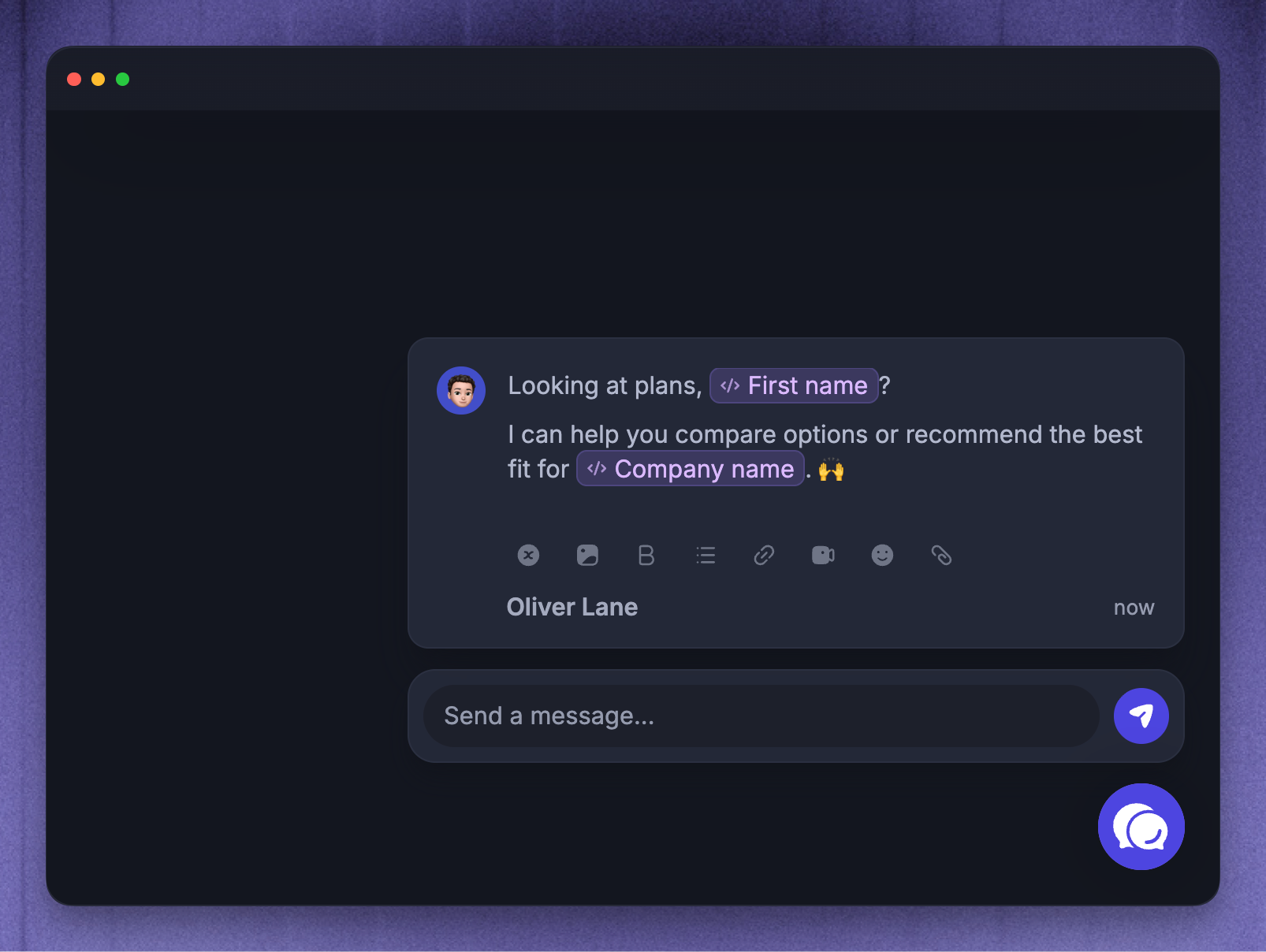
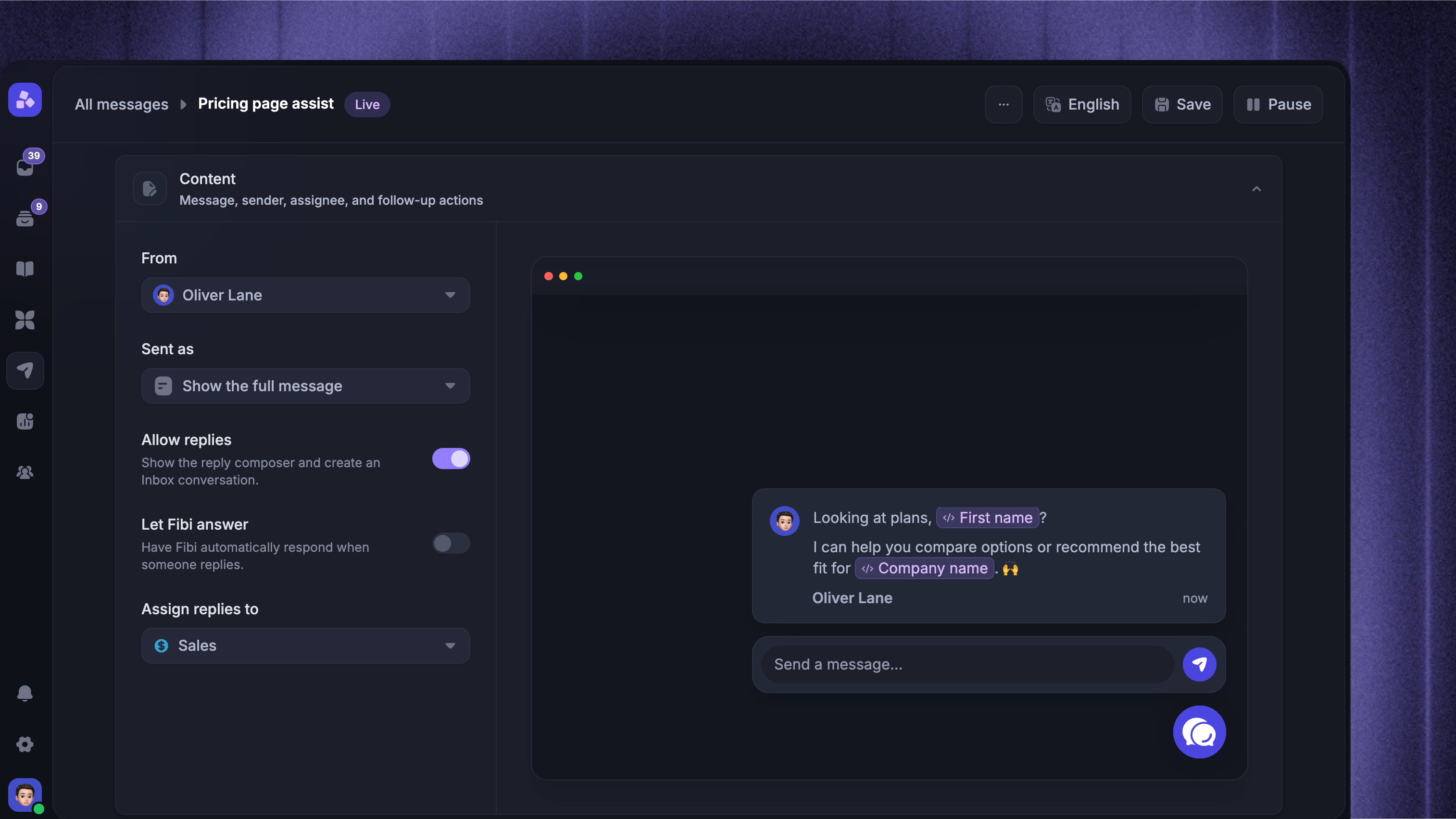
Chats let you start a targeted conversation in the Messenger while customers are already active in your product. Use Chat when a message should feel personal, contextual, and easy to reply to.
Banners
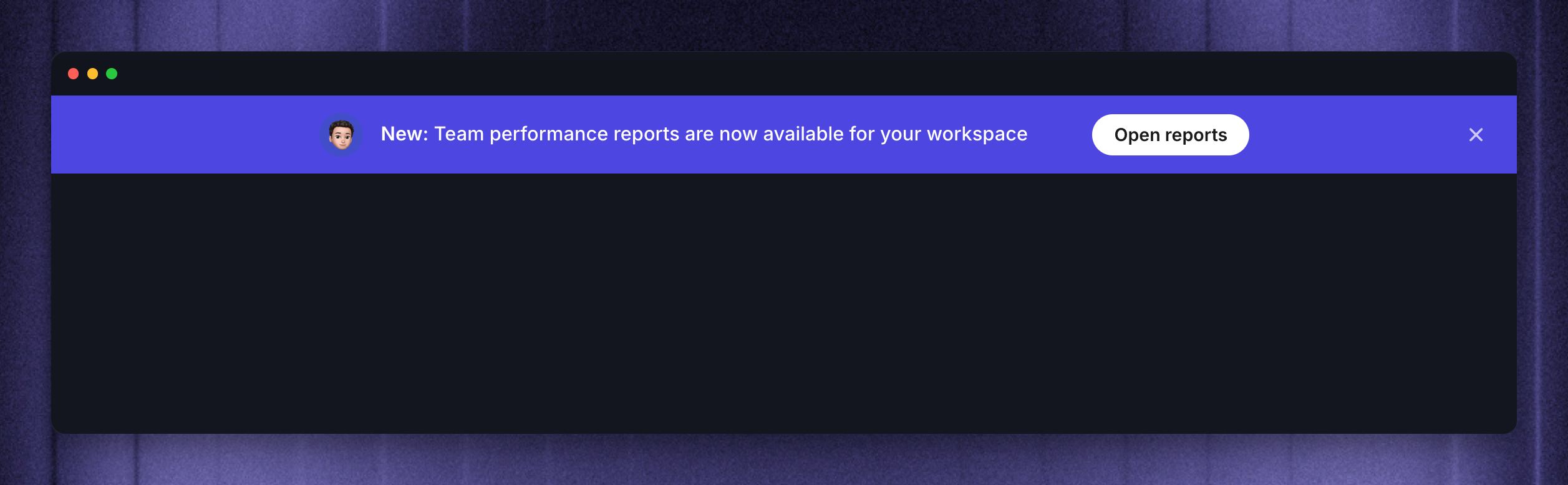
Banners let you place important announcements directly within your product, on the pages where they matter. Use Banners for updates, notices, or guidance that should stay visible.
Emails
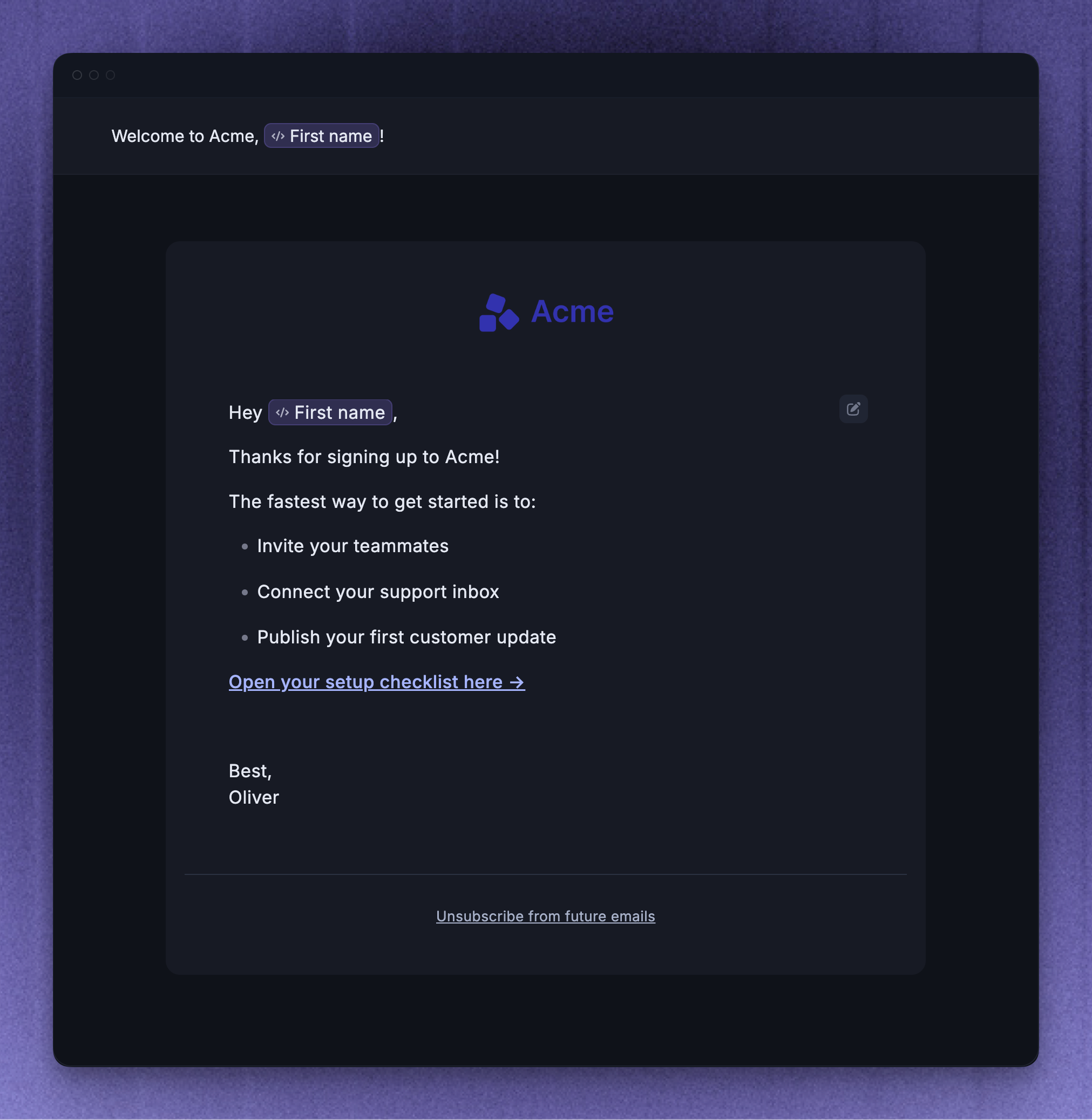
Emails let you reach users outside your product when the message should not depend on an active session. Use Email for launches, follow-ups, and lifecycle messages that need to land in their inbox.
Surveys
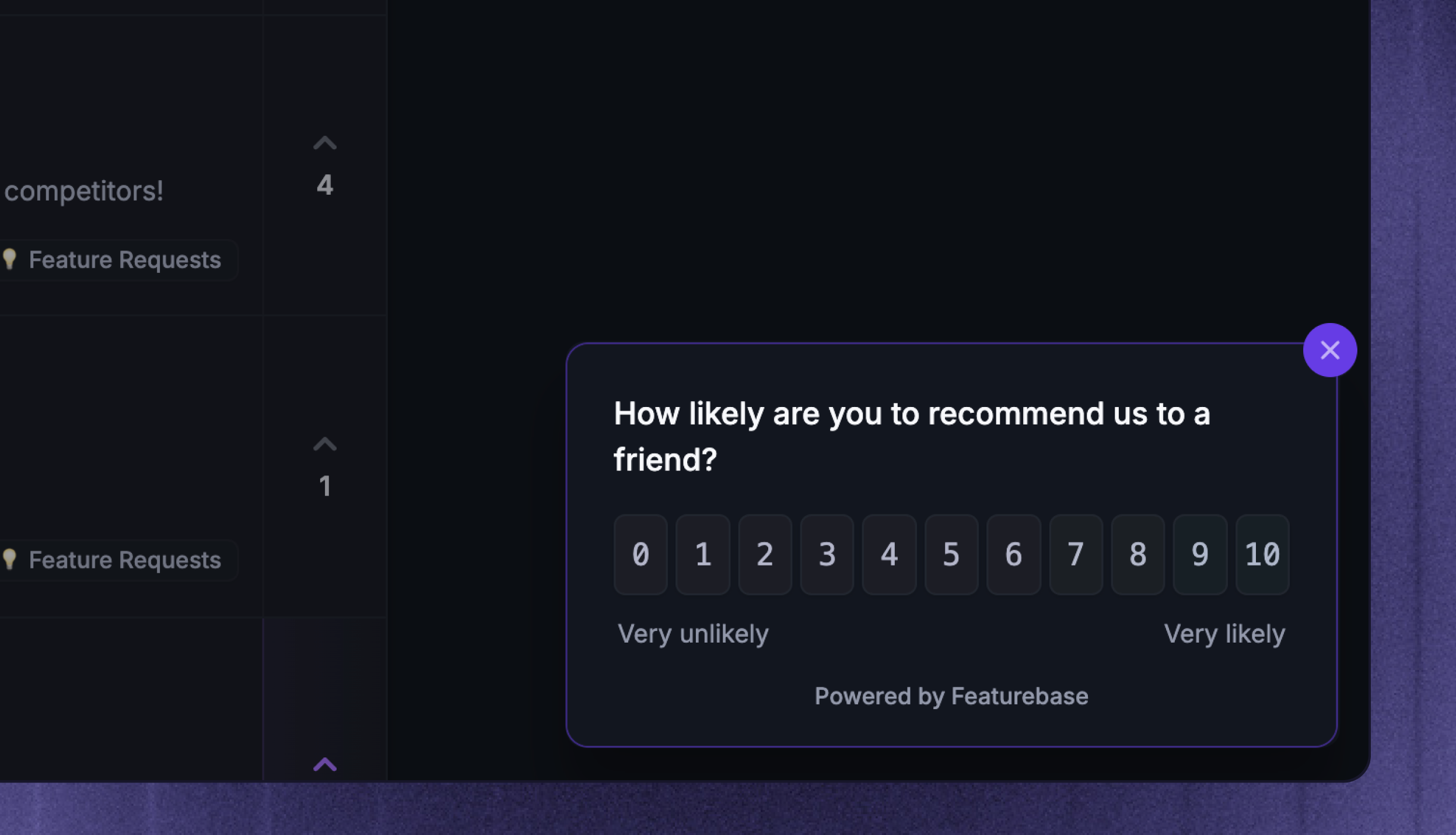
Surveys let you ask targeted questions and collect structured responses from the right audience. Use Surveys when you need feedback without sending customers to a separate form.
Product Tours
Product Tours let you guide customers through tasks on your website with messages and tooltips. Use Product Tours to onboard new users or help customers try a feature while they use your product.
Updates
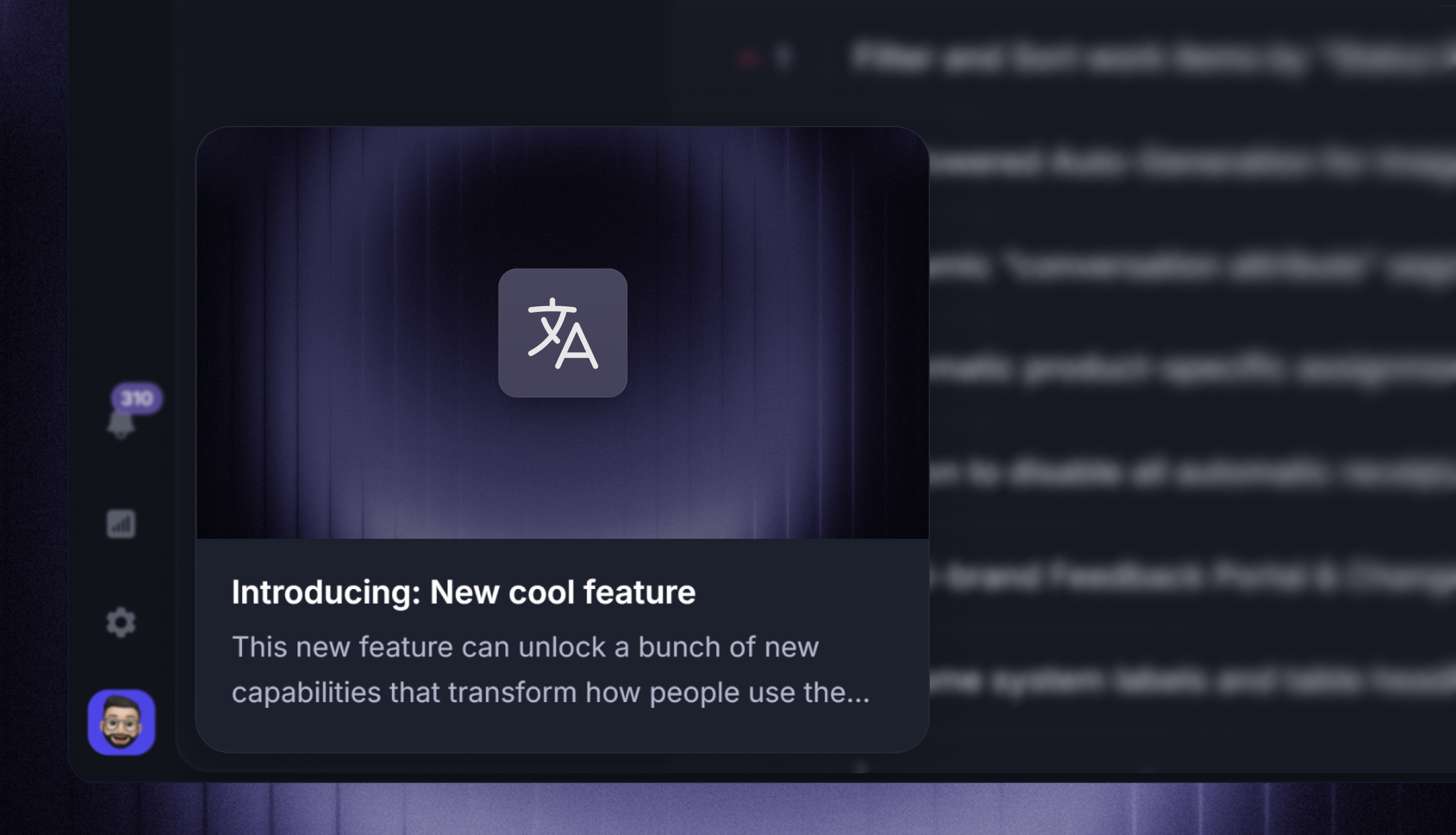
Updates let you publish product announcements to your Updates page, in-app widgets, email subscribers, and selected Slack channels. Use Updates for release notes that should live in a dedicated, shareable place.
Slack broadcasts
Slack broadcasts let you send one-time announcements to selected Customer or Community Slack channels. Use Slack broadcasts to schedule a channel announcement, check delivery, and handle eligible replies from the Inbox.
Message composer and templates
To get started with creating Outbound messages:
Go to Dashboard → Outbound
Click New Message
Choose Start from scratch, or pick a template from Popular or one of the message type tabs
Select Chat, Banner, Email, Survey, Product tour, Update, or Slack broadcast
The editor guides you through content, rules, audience, scheduling, and analytics. Before setting a message live, review who will receive it, when it can send, and how it will appear to customers.
Precise targeting
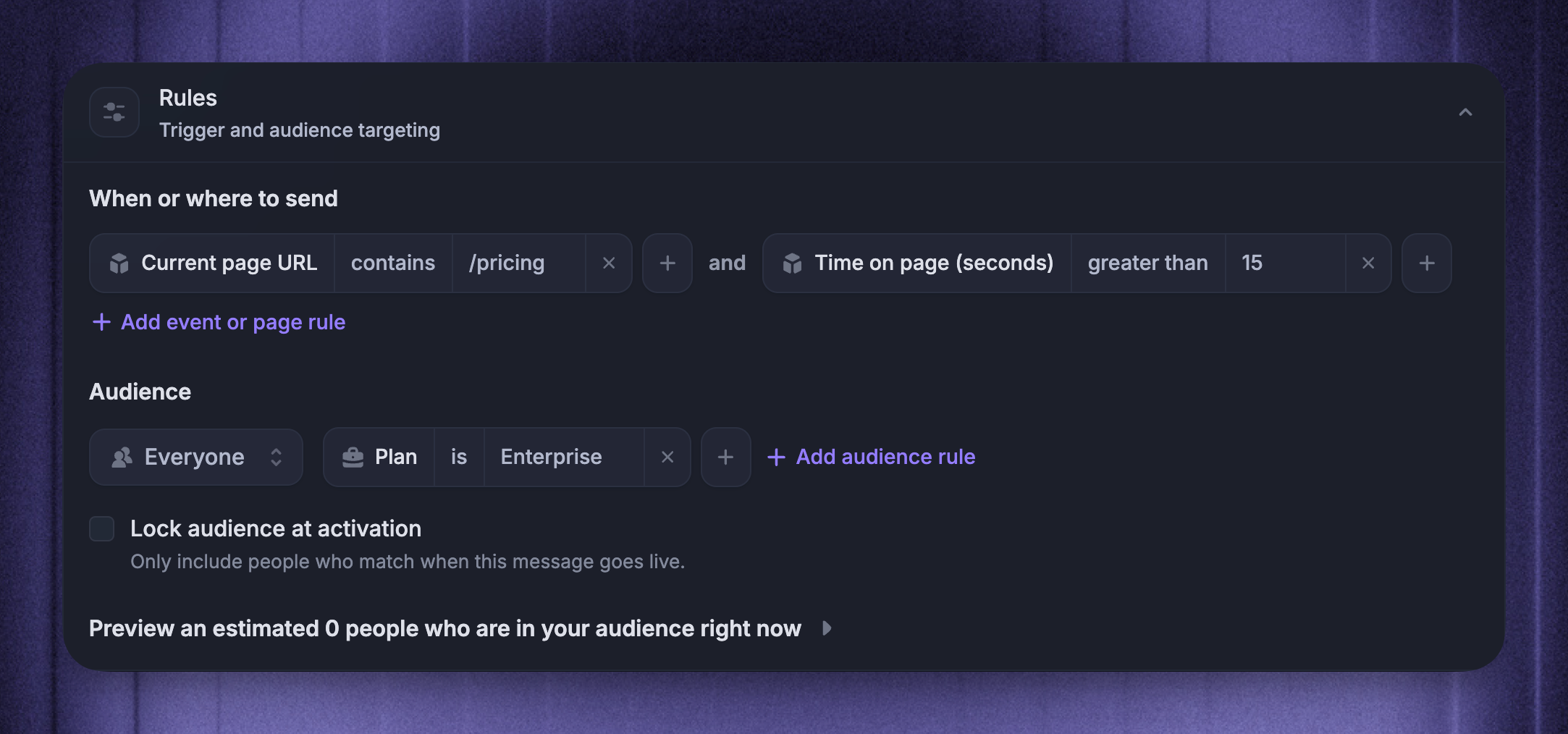
Target Outbound messages by audience type, customer attributes, and page-level triggers such as current page URL, time on page, or CSS selector. For example, all Enterprise customers who visit the /pricing page for more than 15s.
Audience and trigger options depend on the message type. Slack broadcasts target channels or Slack channel segments, rather than individual user audiences or page triggers.
Flexible scheduling
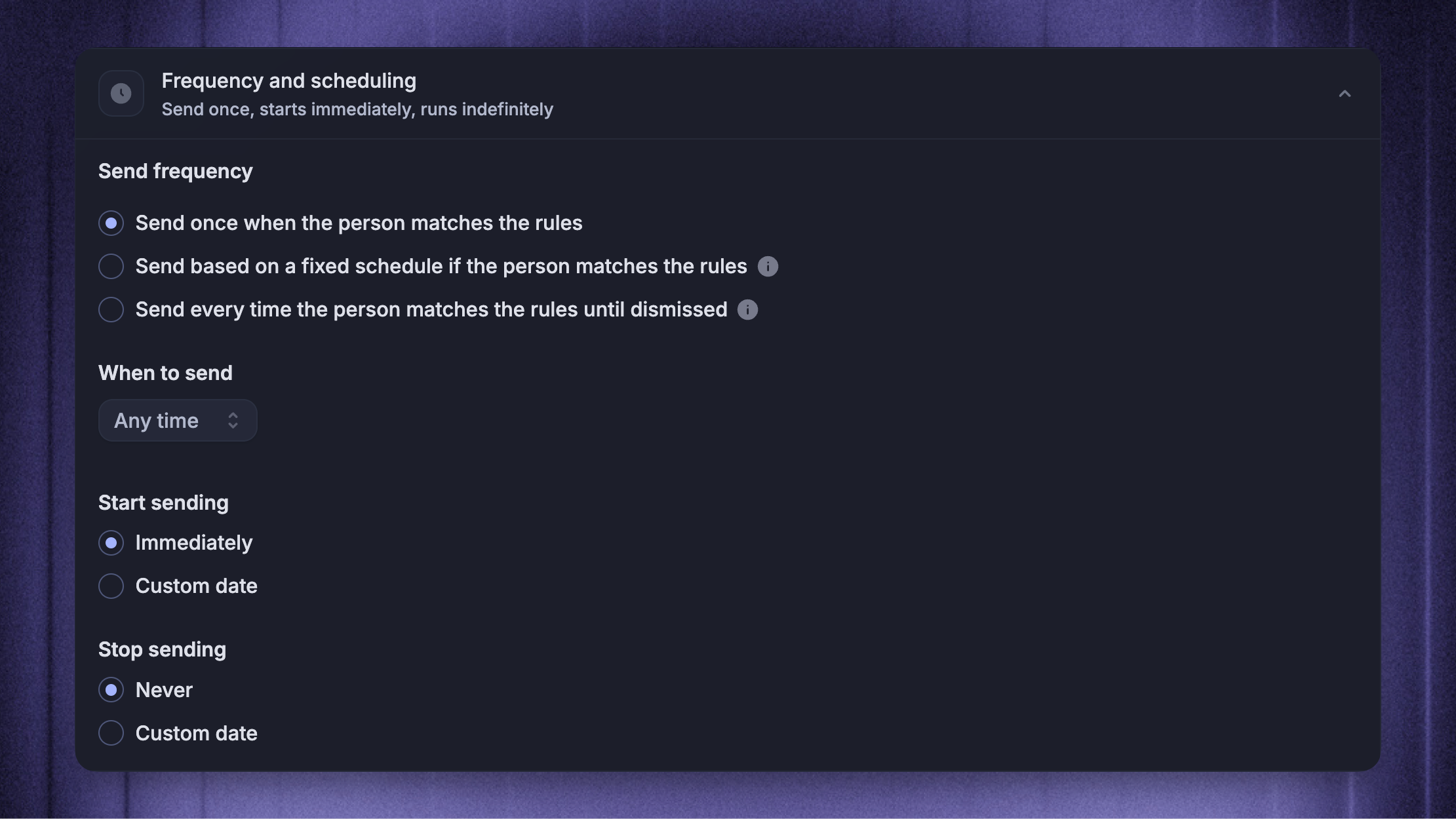
Scheduling controls when an outbound message can send. You can start immediately or on a specific date, stop manually or automatically, and choose whether a message sends once, on a recurring schedule, or when someone matches again, depending on the message type. You can also restrict messages to specific send times, such as office hours or custom windows.
Multi-language messages
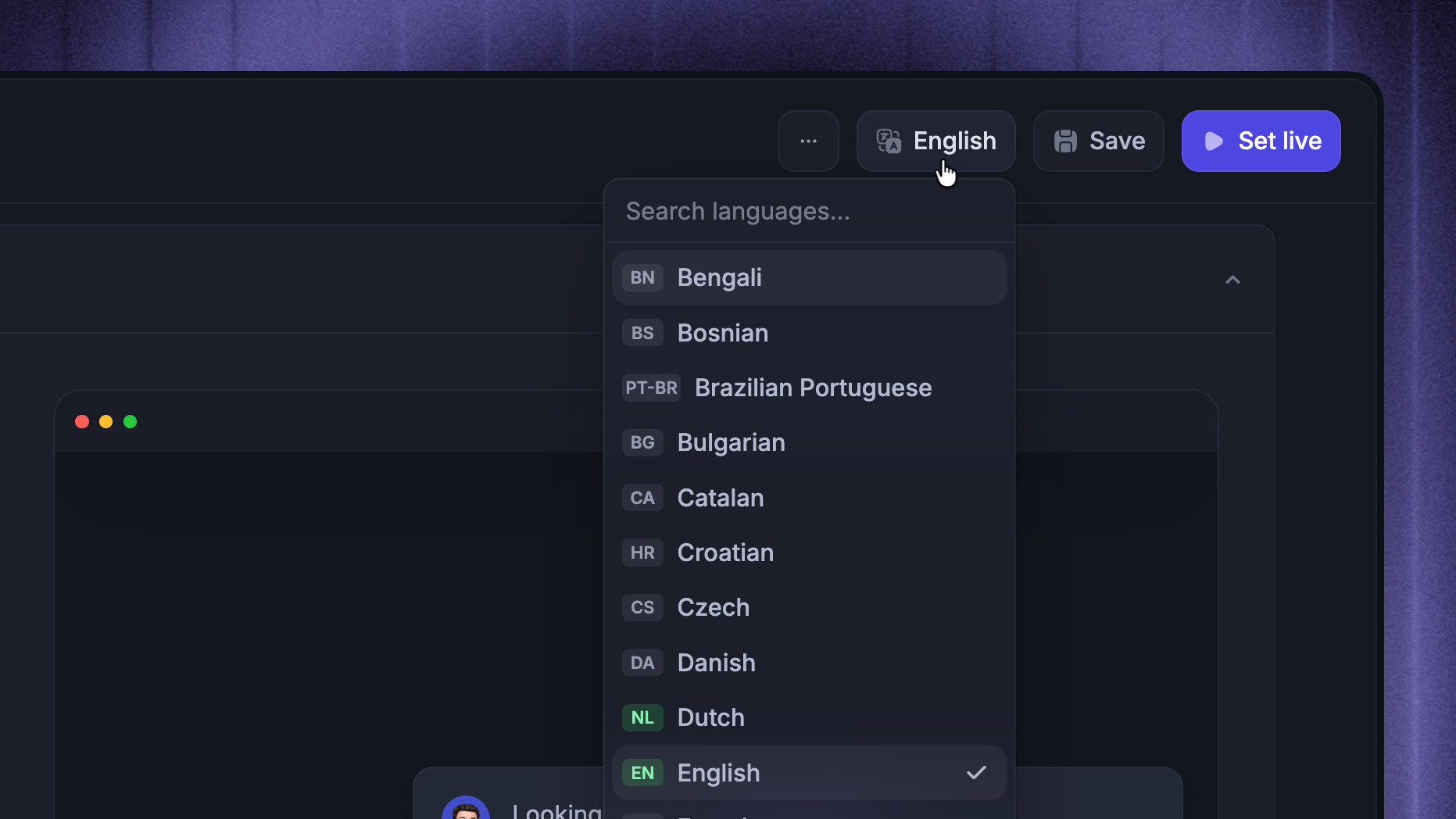
Use each message type's language settings to configure translations. Slack broadcasts use one default-language message, and Updates sent to Slack use the default Updates language.
Centralized Outbound dashboard
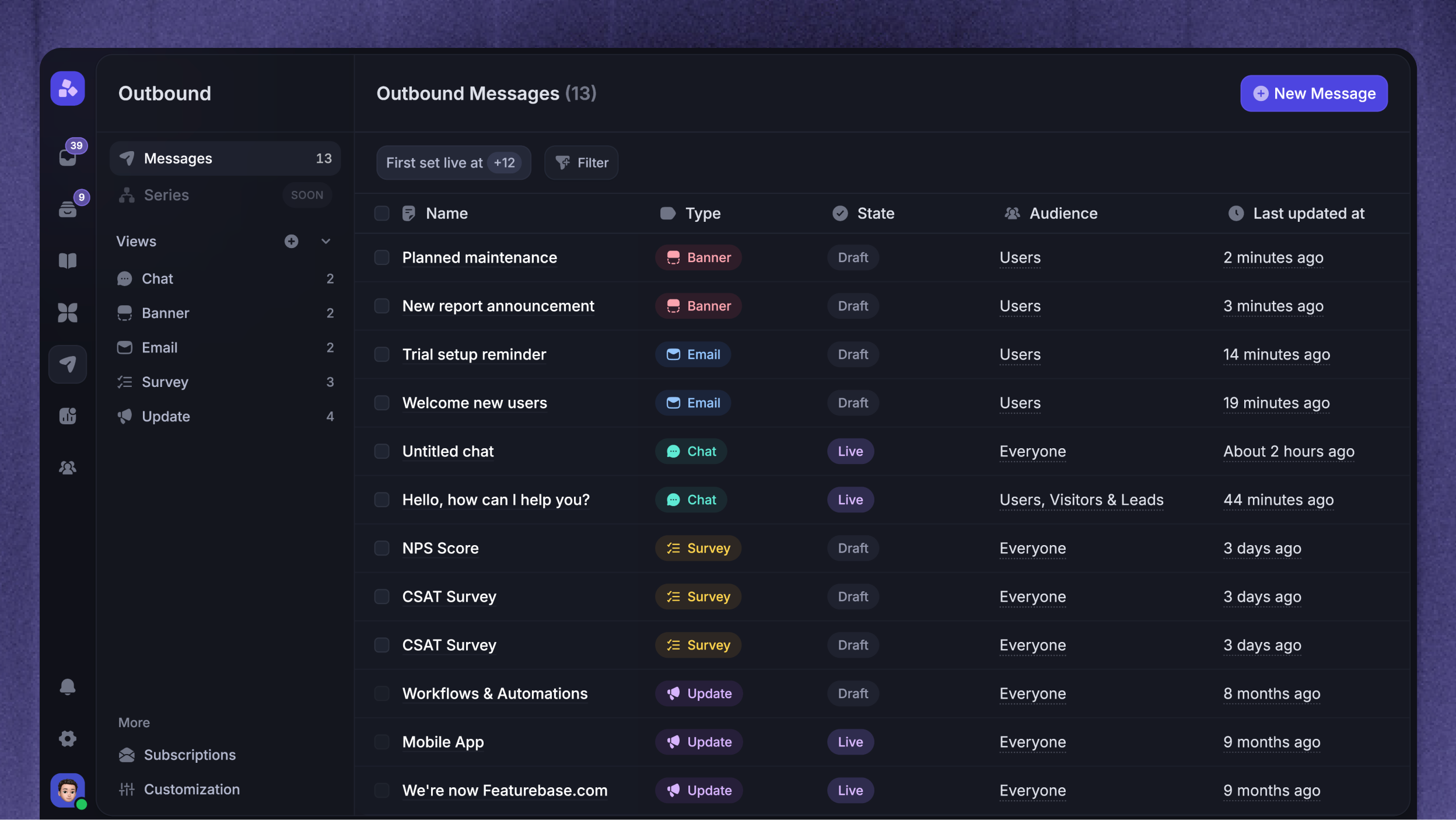
The Outbound comes with a powerful dashboard that centralizes all your messages, allowing your team to view all content in one list. You can filter & sort the messages, customize the columns, and even track relevant analytics for each message (e.g. clicks, views, sends, and more).
In addition, you can create saved views in your sidebar to turn important filters into reusable working lists. Each view keeps its filters, sort order, and visible columns so your team can jump back to the same segment without rebuilding the list.
Message analytics
Outbound analytics shows how messages are delivered and how recipients interact with them. Review performance over time and inspect individual deliveries. For Survey answers and question-level results, use Survey responses.
Product Tour analytics shows where customers stop, compares step performance across tour versions, and helps you investigate tour issues.
Manage Outbound settings
Use these articles and settings pages when you need to configure shared Outbound behavior:
Manage multiple email lists with granular Subscriptions to control email subscription topics and recipient preferences
Outbound email templates to choose the right Email layout
Settings → Outbound → Customization to manage shared styling for outbound experiences
FAQs
What is Featurebase Outbound?
What is Featurebase Outbound?
Outbound is the proactive messaging area in Featurebase. It helps your team onboard, educate, notify, and collect customer feedback before they need to contact support.
Use Outbound to create targeted Chat, Banner, Email, Survey, Product Tour, and Slack broadcast messages. Updates are also available from Outbound, so your team can manage proactive customer communication from one place.
For incoming customer conversations, use the Inbox.
What is proactive support?
What is proactive support?
Proactive support means helping customers before they reach out. Instead of waiting for someone to open a conversation, you can guide them during onboarding, announce product changes, explain known issues, or ask for feedback in the right context.
Outbound helps you do this with targeted messages based on who the customer is, what they are doing, and when the message should appear.
How can Outbound reduce support volume?
How can Outbound reduce support volume?
Outbound can reduce repetitive conversations by answering common questions earlier. For example, you can use it to:
Share important product updates before customers ask about them
Guide new users through setup or activation steps
Notify affected customers about known issues or temporary changes
Collect feedback before a small problem turns into a support conversation
The goal is to keep customers informed in context, so they do not always need to contact your team for the next step.
How does Outbound work with the Inbox and Messenger?
How does Outbound work with the Inbox and Messenger?
Outbound helps you start proactive customer communication, while the Inbox helps your team manage incoming conversations. Chat messages appear in the Messenger, and customer replies can be handled by your team in the Inbox.
This gives customers a consistent experience whether they are reading a proactive message, replying to a Chat message, or starting a new conversation with your team.
Was this helpful?
Still need help? Ask the team