Custom training content for Fibi AI Agent
Learn to add additional training data that Fibi AI Agent can use when answering customers.
Written By Markus Palm
Last updated 13 days ago
Overview
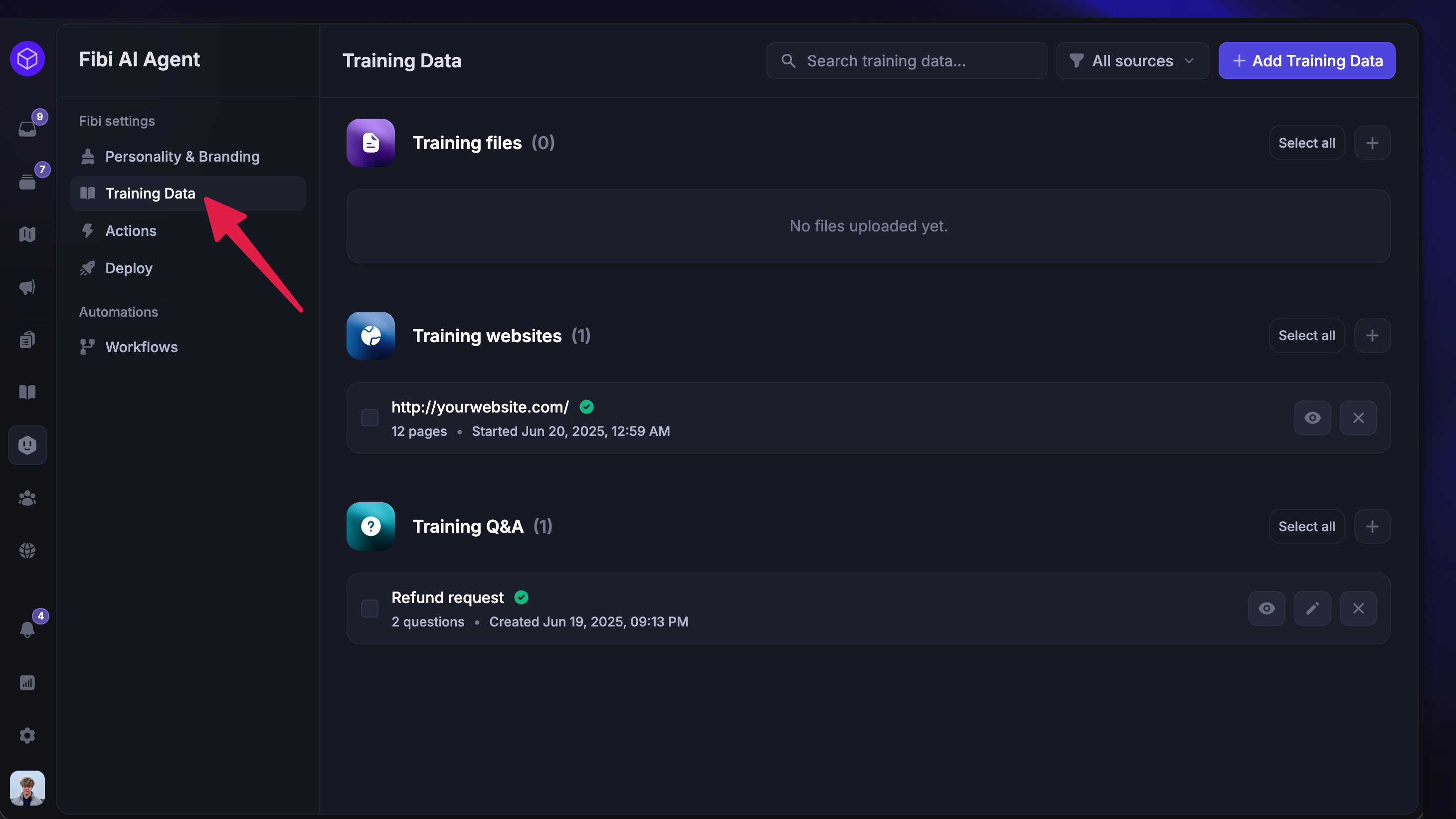
Custom sources let you enhance your Fibi AI Agent by adding extra training content beyond what's already included in your Featurebase workspace and Help Center.
You can easily add training data such as internal files, website content, or custom Q&A snippets to help Fibi better assist your customers - without customers ever seeing them. This reduces manual support workload and ensures customers always receive relevant, timely answers.
Note: Fibi AI Agent is automatically trained on your Featurebase help center, updates, and feedback portal, so you don’t need to add content from there manually. In a workspace with multiple brands, Fibi AI Agent uses only the Help Center connected to the conversation's brand. Files, Websites, and Q&A apply to every brand.
Adding custom sources for Fibi
You can add and manage additional training data sources for your Fibi AI agent from Dashboard → Automations → Training Data.
1. Files (PDF, Word, etc.)
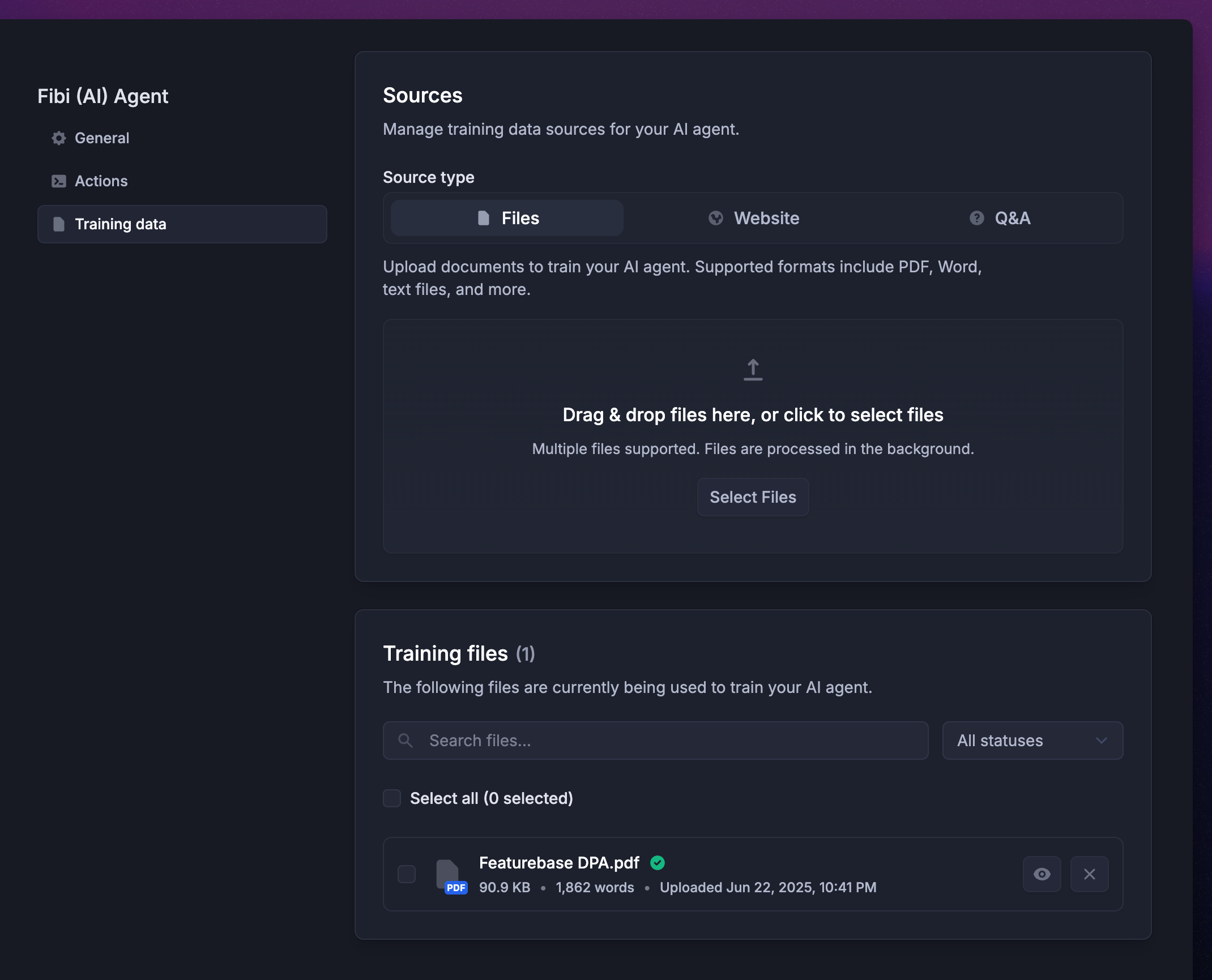
Custom files help Fibi provide accurate answers based on your internal documentation. These files remain private and aren't visible to customers. You can upload most document types, such as PDF, Word, Text files, and more.
To add a new file source for Fibi:
Select the Files tab.
Upload your file(s)
Examples for training files
Examples for training files
GDPR compliance and privacy policy documents
Detailed product specifications or user guides
Terms of Service agreements
Security certifications (e.g., SOC 2 reports)
2. Websites (URLs)
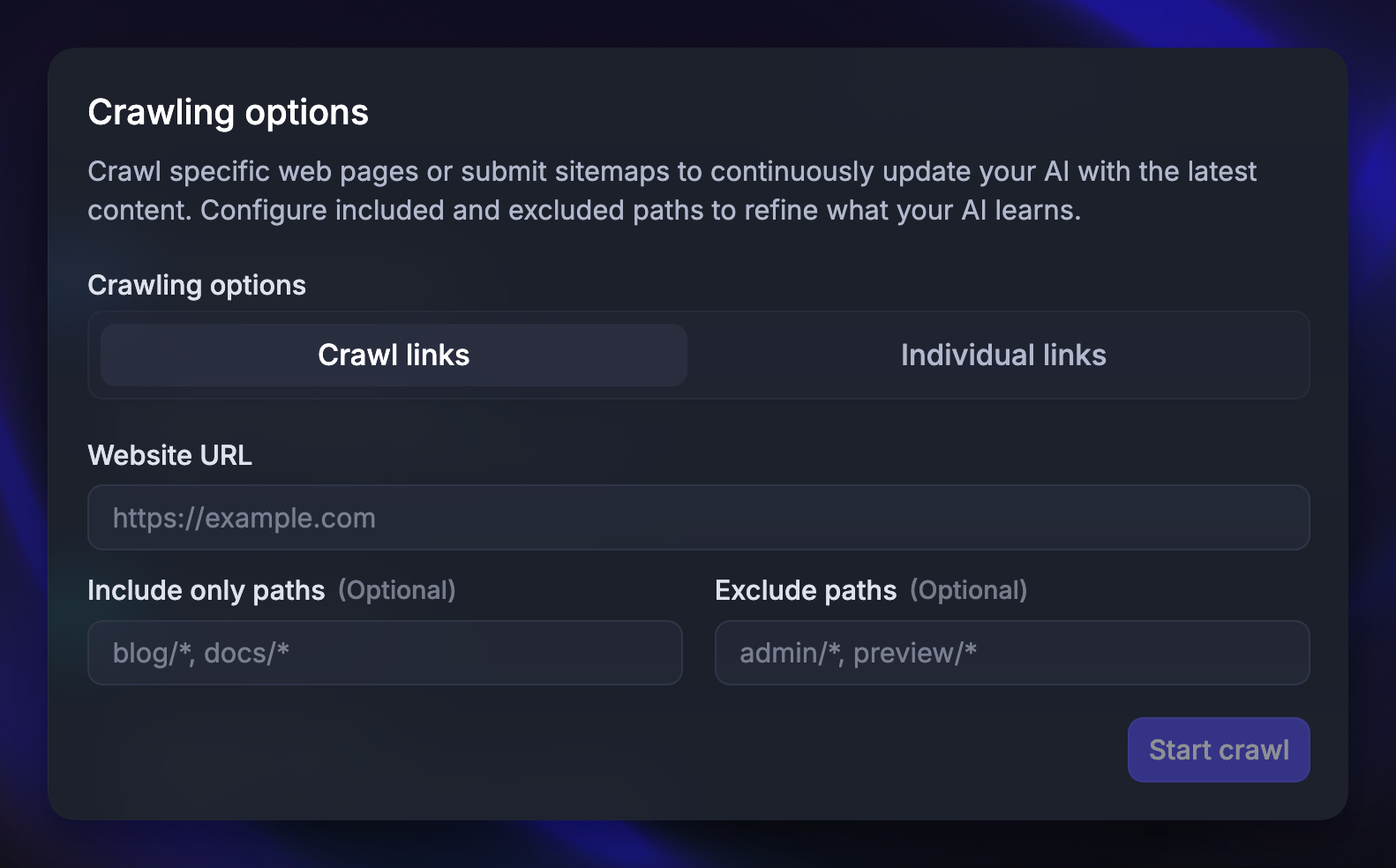
Website sources let Fibi pull helpful information directly from your own website or other relevant URLs. This helps the AI provide more accurate and up-to-date answers based on your existing content.
To add a new website source for Fibi:
Select the Website tab
Choose how you want Fibi to gather information:
Crawl an entire website: Enter your website URL and optionally set paths to include or exclude (e.g.,
blog/*).Fetch specific URLs: Enter one or more individual URLs separated by commas.
Click ‘Start crawl’ to save
Tips for training websites
Tips for training websites
Exclude less relevant content like blog articles by adding paths (e.g.,
blog/*) to the exclude field. This helps Fibi stay focused on content most useful for everyday support.Focus on quality, not quantity. When choosing pages to crawl, prioritize the content your customers actually use - like guides, FAQs, and troubleshooting articles. Crawling every page (such as technical references or changelogs) can overload the AI with unnecessary data and reduce answer quality.
Write with your users words. Update documentation to include phrases your users are likely to type in their questions. For example, instead of just “Create email,” use “To create an email campaign, follow these steps.” This helps the AI better match user intent to the right content.
Examples for training websites
Examples for training websites
Your homepage or product landing pages
Pricing and subscription plans page
External help center (if you don’t have yours in Featurebase)
Subprocessors portal or compliance page
3. Custom snippets (Q&A)
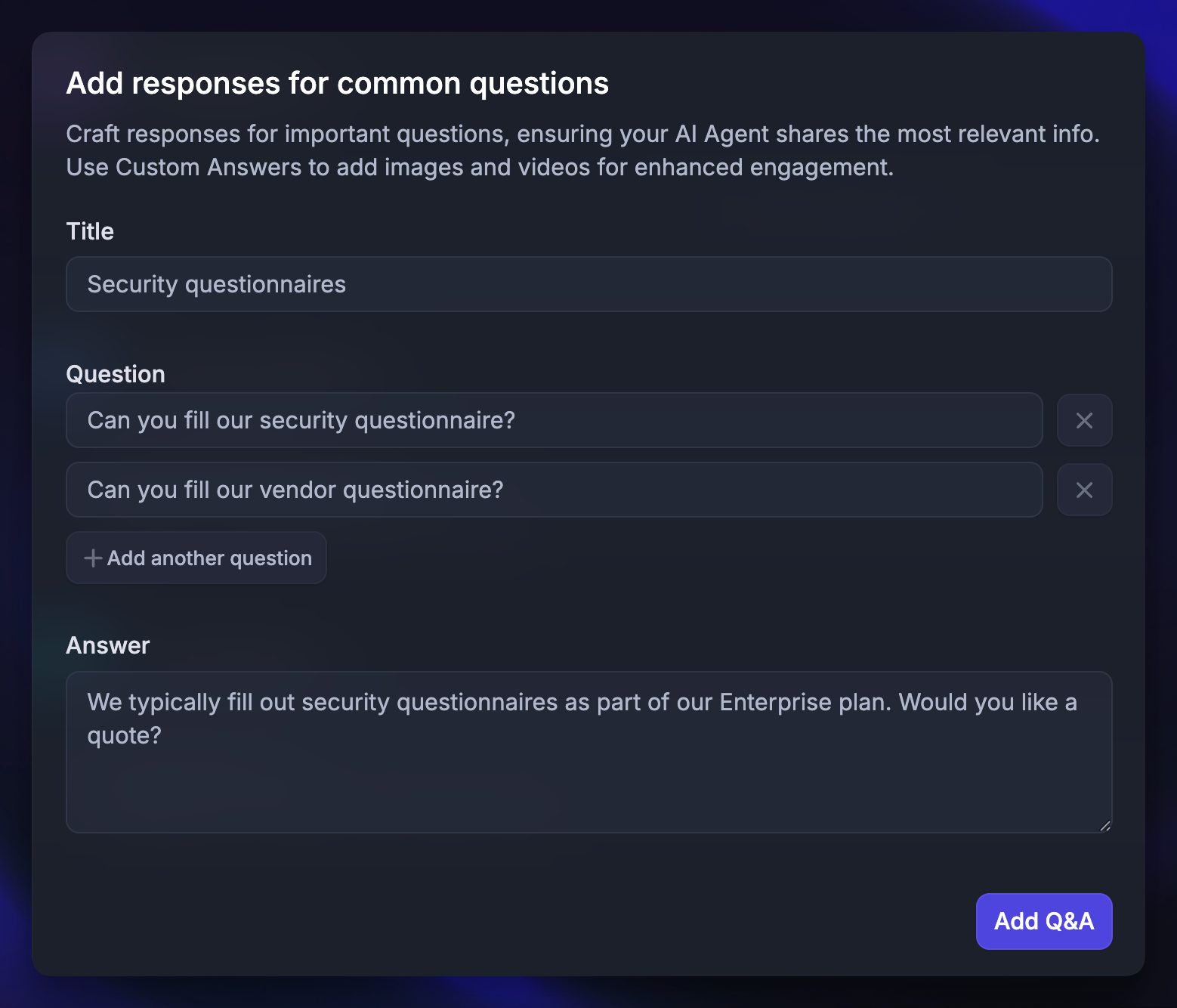
Q&A snippets are small sources of information that aren’t publicly available to customers and are only used to improve AI answer quality and coverage.
To create a new custom Q&A snippet for Fibi:
Select the Q&A tab
Enter a title for the snippet (visible only to your team)
Add the question(s) that should trigger that snippet
Add a concise answer that AI uses for training
Click ‘Add Q&A’ to save
Tip: Keep answers short and focused. Skip greetings or extra phrases - Fibi automatically adds those when appropriate.
Example answer if you want Fibi to clarify the company size:
✅ Please clarify the number of employees in your company.
❌ Thanks for reaching out! Could you please clarify the number of employees in your company? We’d greatly appreciate it. Have a wonderful day!
Examples for custom snippets
Examples for custom snippets
Qualifying leads who request demos (e.g., company size, role)
Common troubleshooting steps (e.g., password reset)
Short responses about billing and refunds
Product compatibility questions (e.g., integrations supported)
Internal policies or processes (e.g., requesting account deletion)
Manage training content through the API or MCP
You can also create and update Q&A snippets and training files from your own systems or an AI tool. Use the oracle to check proposed Q&A content against existing knowledge before saving it.
This is useful for maintaining a large Q&A collection, syncing approved product changes, or turning reviewed support answers into reusable knowledge.
FAQs
Can I add knowledge to Fibi AI answers from Notion, Confluence, and other tools?
Can I add knowledge to Fibi AI answers from Notion, Confluence, and other tools?
While there's no native integration for these tools, you can easily add content using custom sources.
Simply export your Notion or Confluence documents as PDFs or publish them as webpages, then upload them directly into Fibi as custom files or website sources.
How long does it take for Fibi to process the uploaded custom source?
How long does it take for Fibi to process the uploaded custom source?
Fibi should process the content in about 30 seconds and begin answering based on the newly provided training data.
Where can I test Fibi for the new custom data?
Where can I test Fibi for the new custom data?
Currently, there’s no separate sandbox environment. The best way to test it is directly from your live website or from Settings → Support → Messenger.
Does content from websites get continuously updated and recrawled?
Does content from websites get continuously updated and recrawled?
No, we haven’t implemented an automatic recrawler yet. If you want to update Fibi’s knowledge, you can re-add the website or source.
Was this helpful?
Still need help? Ask the team