Editing your profile
Learn how to change your Featurebase account's name, description and profile picture.
Written By Kateryna Babenko
Last updated 21 days ago
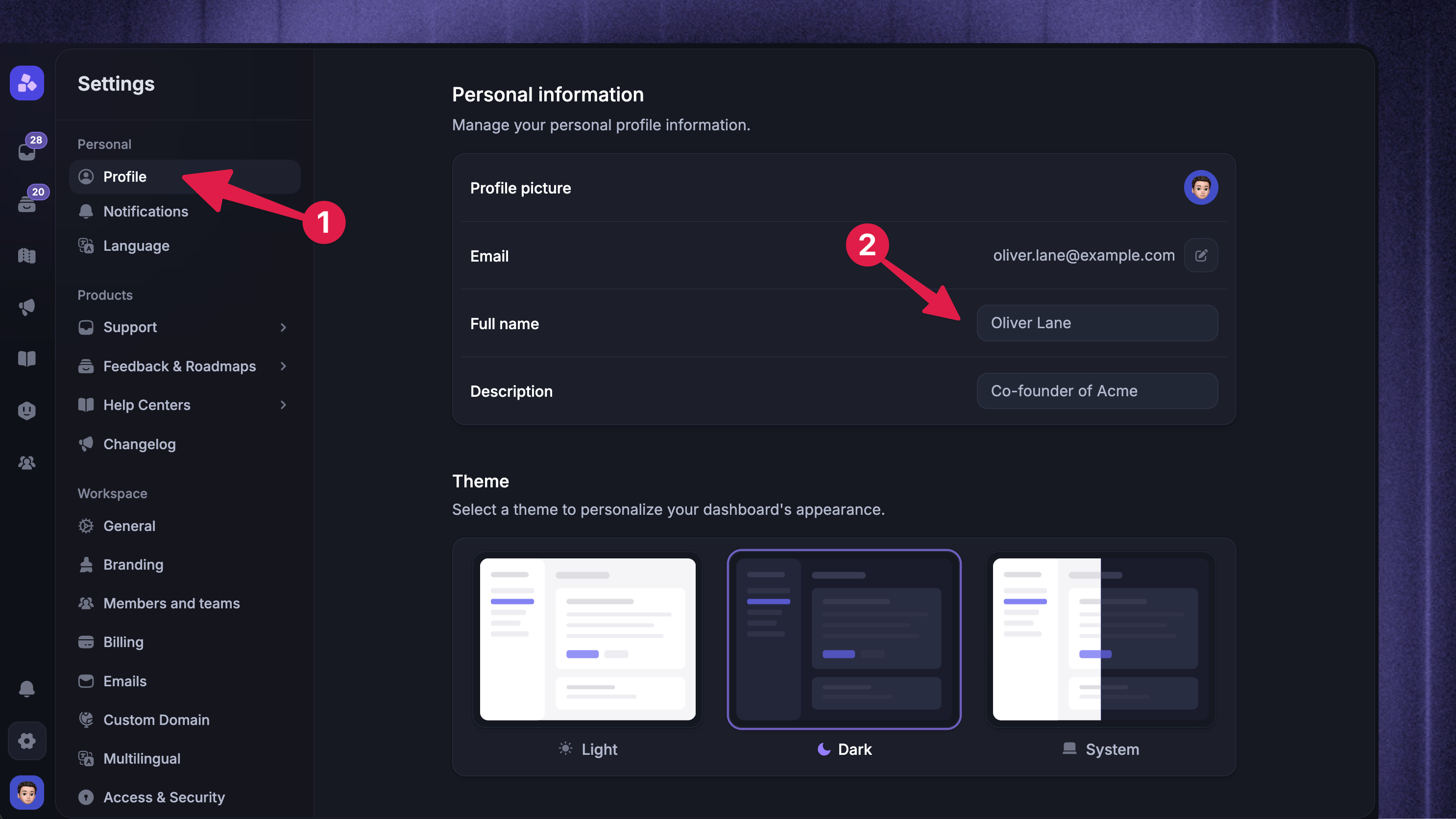
Editing your profile as an admin
To change your account name, description, or profile picture from the dashboard:
Go to Settings → Profile
In the Personal information section, update your profile picture, full name, or description
Your changes are saved automatically
Editing your profile as an end-user
To change your profile from the public portal:
Open your profile from the top right of the Public Portal
Click Edit Your Profile
Change your displayed name, description, picture, or password
Click Save
That’s it! You’ve successfully updated your profile; the changes will be reflected in the application immediately.
NB! Users created automatically through Single Sign-On cannot edit their profile (the edit profile option won’t show.)
FAQ
What size or aspect ratio should the profile picture be in?
What size or aspect ratio should the profile picture be in?
We recommend uploading square images for your profile picture. Image size isn't important, as we resize larger images on our server.
Was this helpful?
Still need help? Ask the team